Outlook Mail
Outlook Mail connects through Microsoft Graph in one of two ways: a user signs in with their Microsoft work or school account (OAuth 2.0), or Truto uses an app registration in your customer's Microsoft Entra tenant with no user involved (OAuth 2.0 Client Credentials).
Install the Outlook Mail integration
Install Outlook Mail from Available integrations in each environment you connect accounts from.
Use your own Outlook Mail OAuth app (optional)
Truto ships an Outlook Mail OAuth app, so OAuth 2.0 works without any setup. To show your own app on the consent screen instead, register an app in Microsoft Entra ID that allows accounts in any organizational directory, register the redirect URL below, and set the app's Client ID and Client Secret on the installed integration. See Overriding OAuth credentials.
https://api.truto.one/connect/outlook/callbackBy default, Truto asks Outlook Mail for these scopes. The connect screen lists them under Permissions required, and you can change them when you override the OAuth credentials.
emailoffline_accessopenidprofilehttps://graph.microsoft.com/Mail.Read.Sharedhttps://graph.microsoft.com/Mail.ReadWritehttps://graph.microsoft.com/Mail.Sendhttps://graph.microsoft.com/User.Readhttps://graph.microsoft.com/User.ReadBasic.Allhttps://graph.microsoft.com/Contacts.Read
Set up an app for client credentials
Only needed for the OAuth 2.0 Client Credentials method. Do this in the Microsoft Entra tenant whose mailboxes you are connecting.
- Sign in to the Microsoft Entra admin center and go to Entra ID → App registrations → New registration. Enter a name and click Register.
- On the app's Overview page, copy the Application (client) ID and the Directory (tenant) ID.
- Open Certificates & secrets, create a client secret and copy its value. Microsoft shows the value only once.
- Open API permissions → Add a permission → Microsoft Graph → Application permissions, and add
Mail.Read,Mail.SendandUser.Read.All. - Click Grant admin consent for your tenant. Application permissions always need an administrator's consent.
See Microsoft's Register an application and Get access without a user guides.
Connect an Outlook Mail account
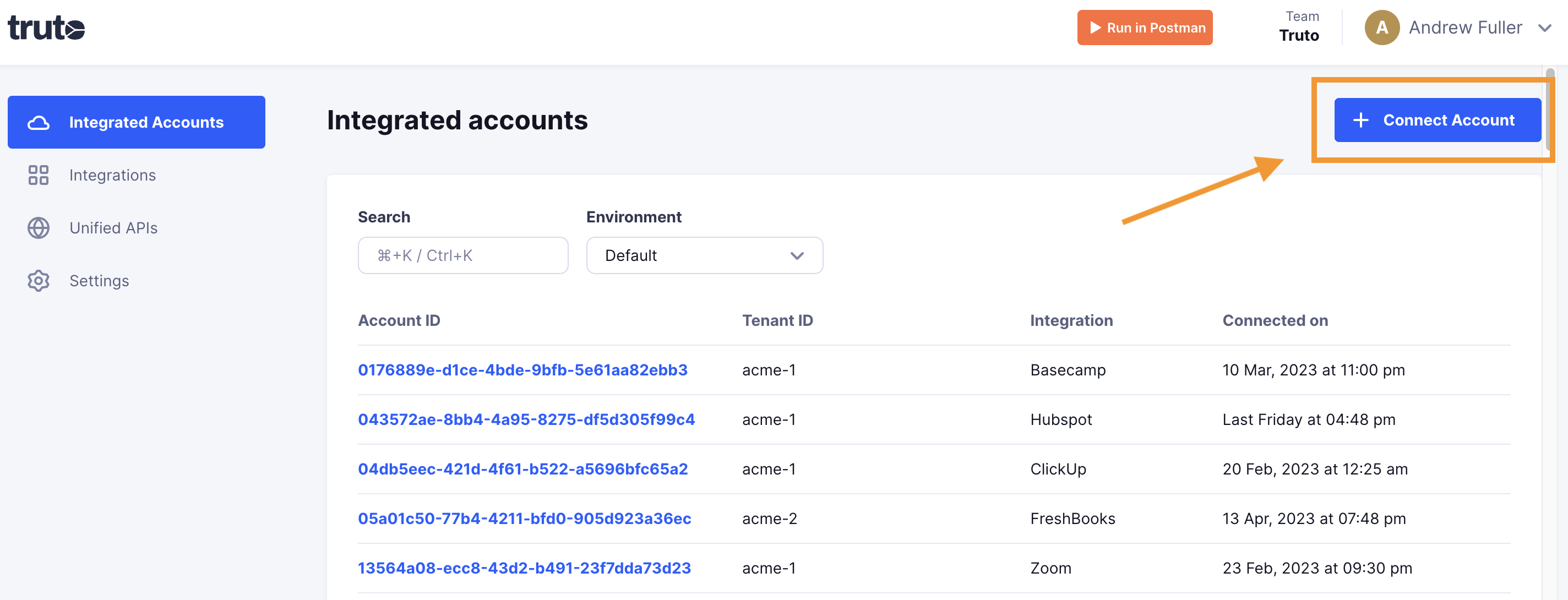
- Click Connect Account.
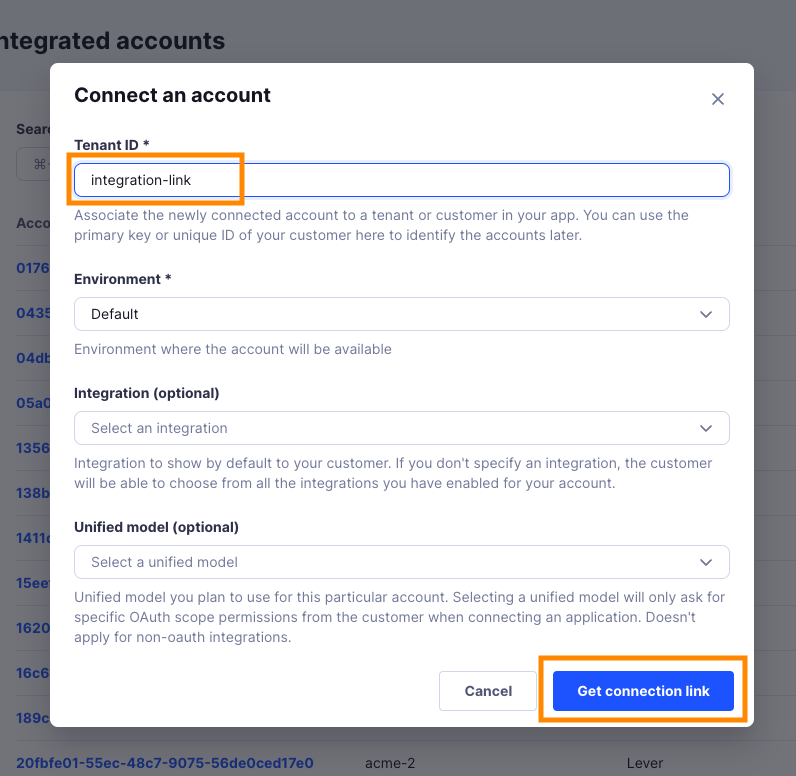
- Enter a Tenant ID. This can be any ID you choose. Click Get connection link.
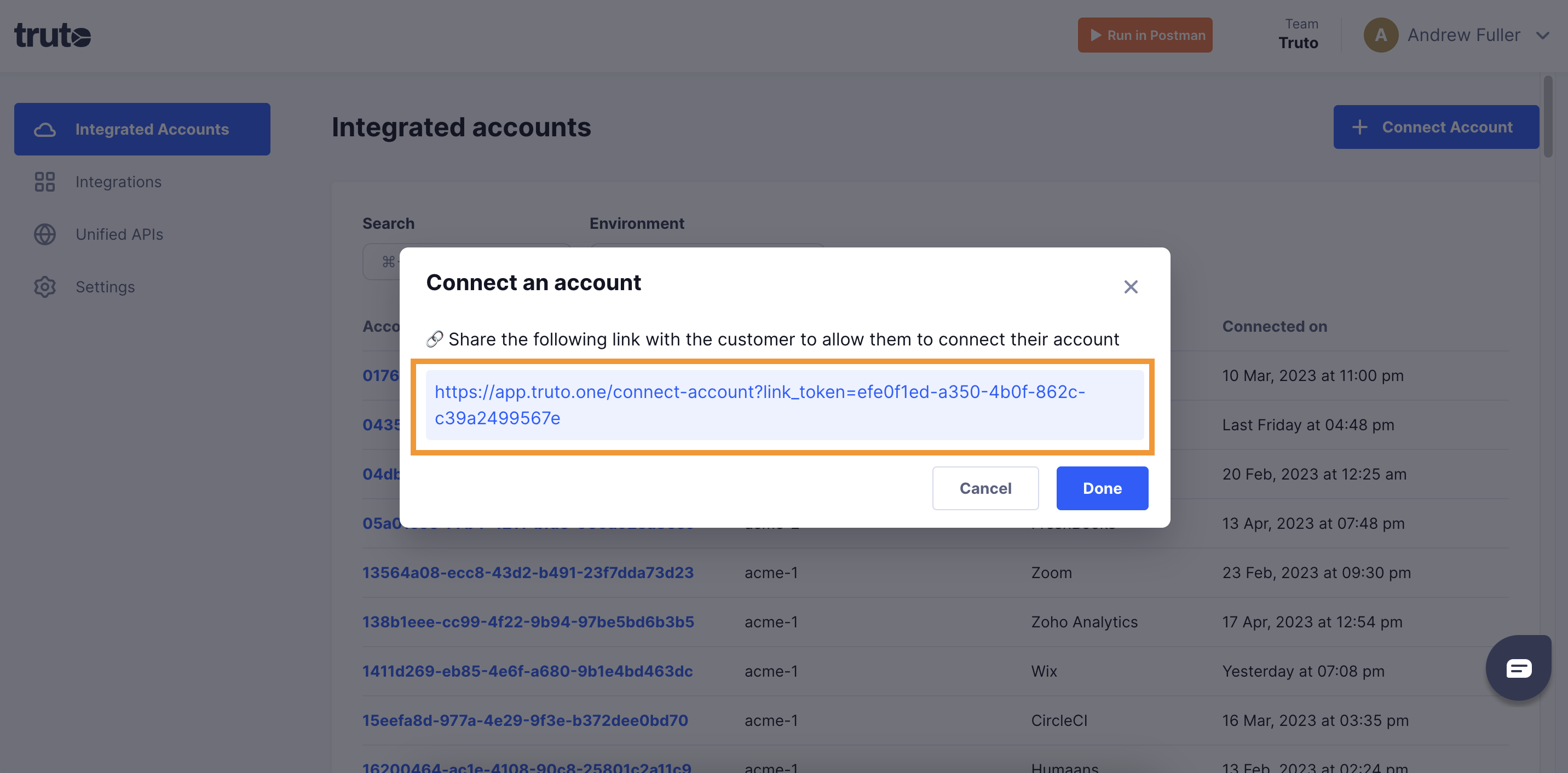
- Open the generated link. You can also share it with your customer so they connect their own Outlook Mail account.
- Select Outlook Mail.
- Pick an authentication method: OAuth 2.0, OAuth 2.0 Client Credentials. Each one is described below.
OAuth 2.0
Click Connect.
Sign in with a Microsoft account and allow access. Only work or school accounts can sign in.
OAuth 2.0 Client Credentials
Fill in the form and click Connect:
| Field | Required | What to enter |
|---|---|---|
| Client ID | Yes | The app's Application (client) ID. |
| Client Secret | Yes | The client secret Value. |
| Tenant ID | Yes | The Directory (tenant) ID. |
The connect screen reminds you that this method needs the Mail.Read, Mail.Send and User.Read.All application permissions, not delegated ones, with admin consent. See Set up an app for client credentials.
The new account appears under Integrated Accounts. Click its Account ID to see its details and make API calls.