Zoho CRM
Install Zoho CRM integration
The Zoho CRM integration can be found here. Please install it in your environments before proceeding with the steps below.
Use your own Zoho CRM OAuth app
Truto connects Zoho CRM accounts through its own OAuth app, so this step is optional. To show your own app on the consent screen instead:
- Create an OAuth app in Zoho CRM and add
https://api.truto.one/connect/zohocrm/callbackas its redirect URL. If you use a redirect URL on your own domain, add that URL instead. - Enter the app's Client ID and Client Secret on the installed Zoho CRM integration. See Overriding OAuth credentials.
Connecting a Zoho CRM account
-
Click on Connect Account
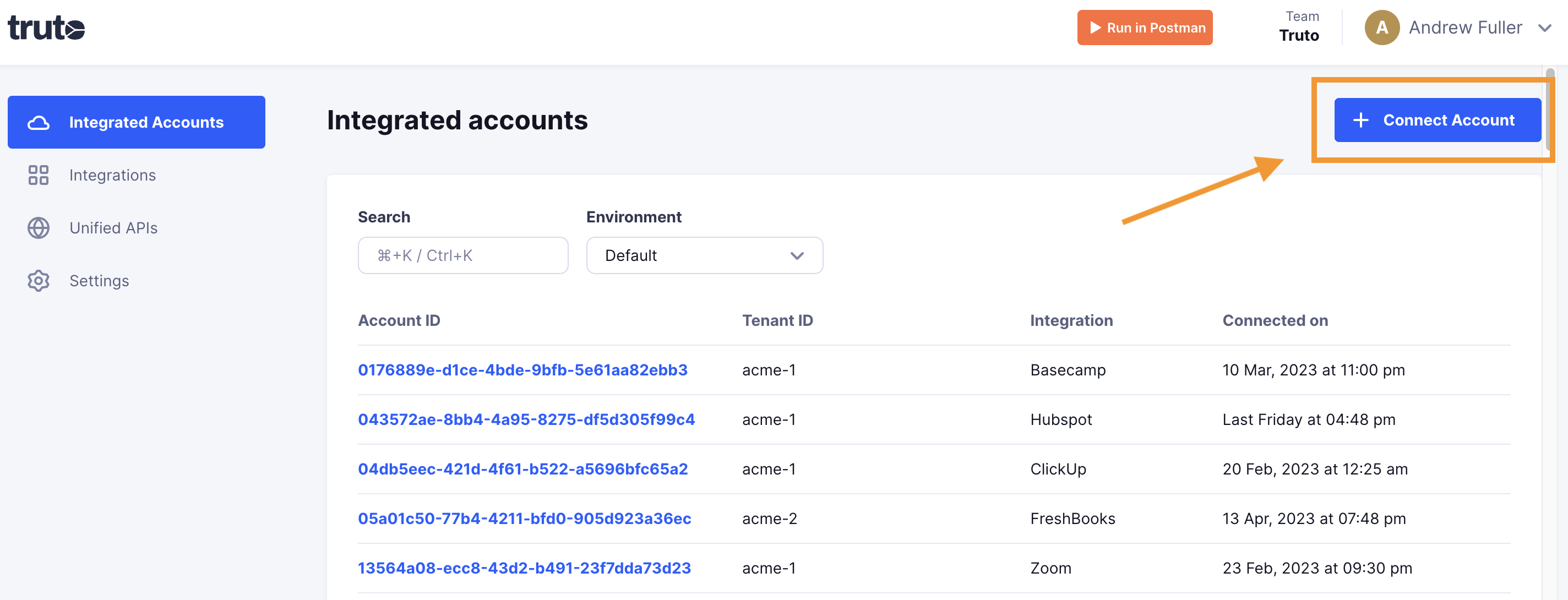
-
Type in a value for the Tenant ID. This can be any ID of your choosing. And then click on Get connection link
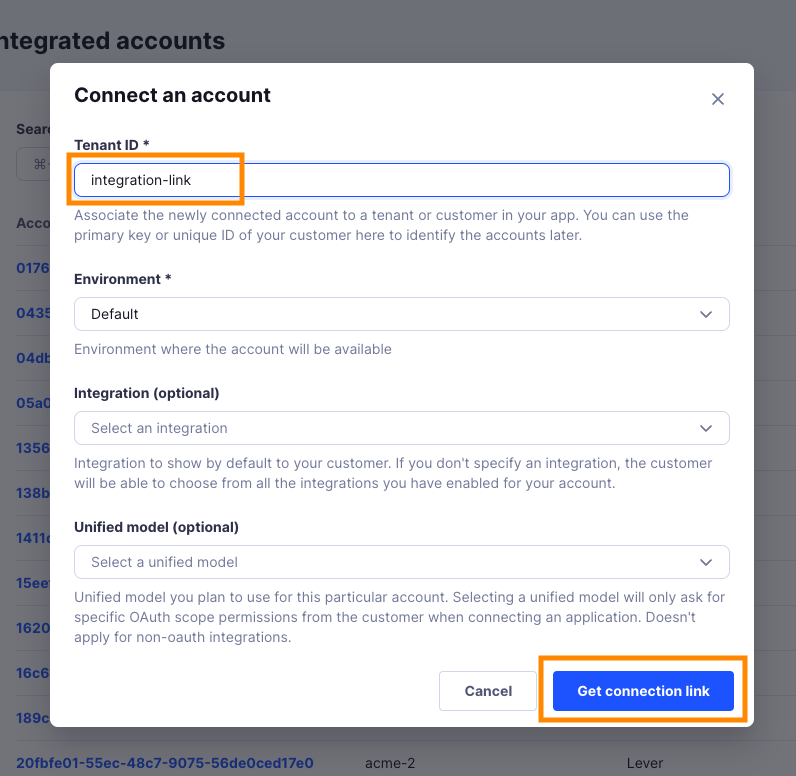
-
A new link will be generated. Clicking on the link will open a new tab with the list of integrations. You can share this link with your customers too, and they will be able to connect their Zoho CRM account.
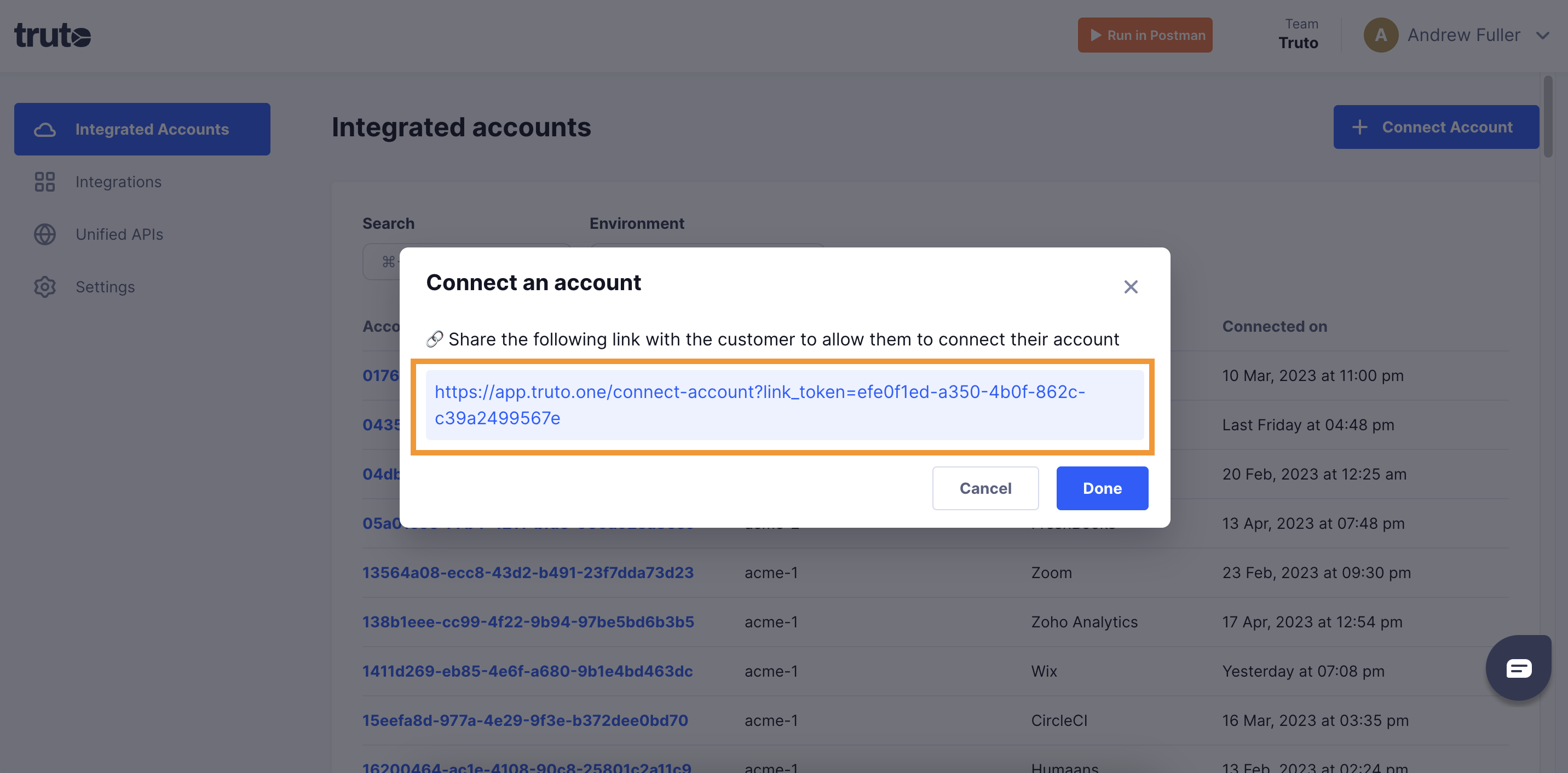
-
Select Zoho CRM

-
Pick the Datacenter Region (required) your Zoho account is hosted in: US (
.com), Europe (.eu), India (.in), Australia (.com.au), China (.com.cn) or Japan (.jp). It matches the domain you sign in on, for exampleaccounts.zoho.eu. Click Connect, then log in to your Zoho CRM account and allow access to Truto. -
You should now see a connection successful message. You can now close this tab.
-
Go to your Truto account, and you should see the new Zoho CRM integration under Integrated Accounts. Click on the Account ID to view the details and initiate API calls.