Keap
Install Keap integration
The Keap integration can be found here. Please install it in your environments before proceeding with the steps below.
Use your own Keap OAuth app
Truto connects Keap accounts through its own OAuth app, so this step is optional. To show your own app on the consent screen instead:
- Create an OAuth app in Keap and add
https://api.truto.one/connect/keap/callbackas its redirect URL. If you use a redirect URL on your own domain, add that URL instead. - Enter the app's Client ID and Client Secret on the installed Keap integration. See Overriding OAuth credentials.
Connecting a Keap account
-
Click on Connect Account
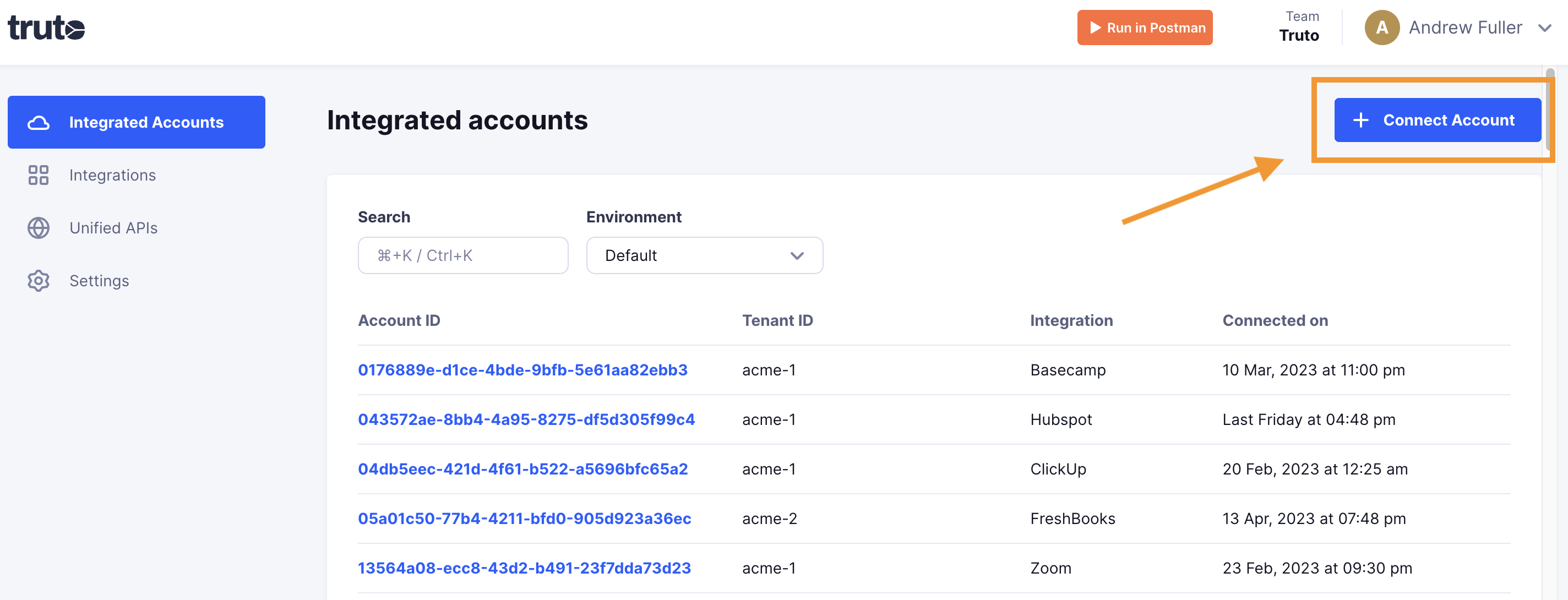
-
Type in a value for the Tenant ID. This can be any ID of your choosing. And then click on Get connection link
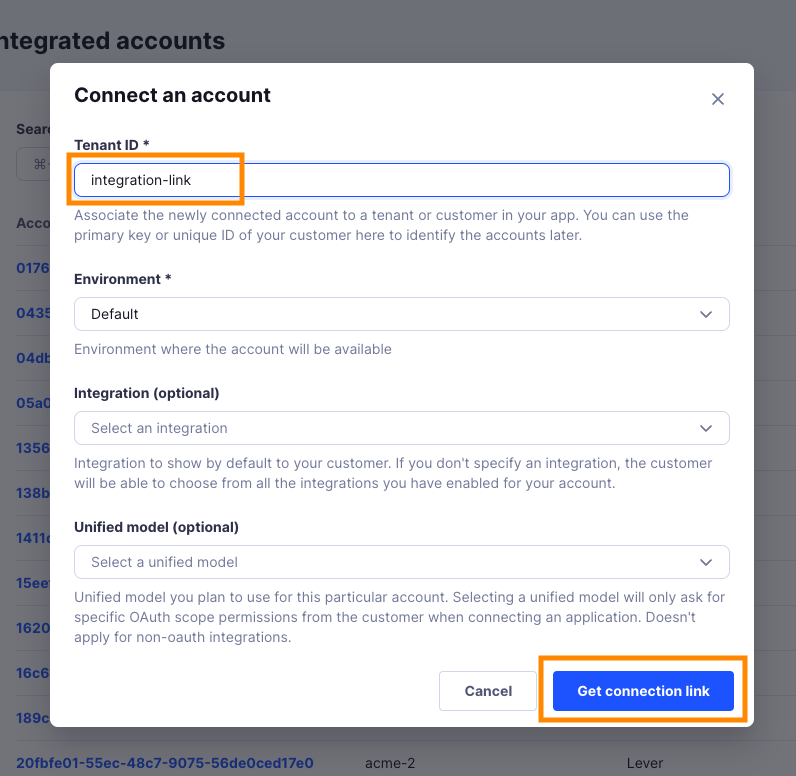
-
A new link will be generated. Clicking on the link will open a new tab with the list of integrations. You can share this link with your customers too, and they will be able to connect their Keap account.
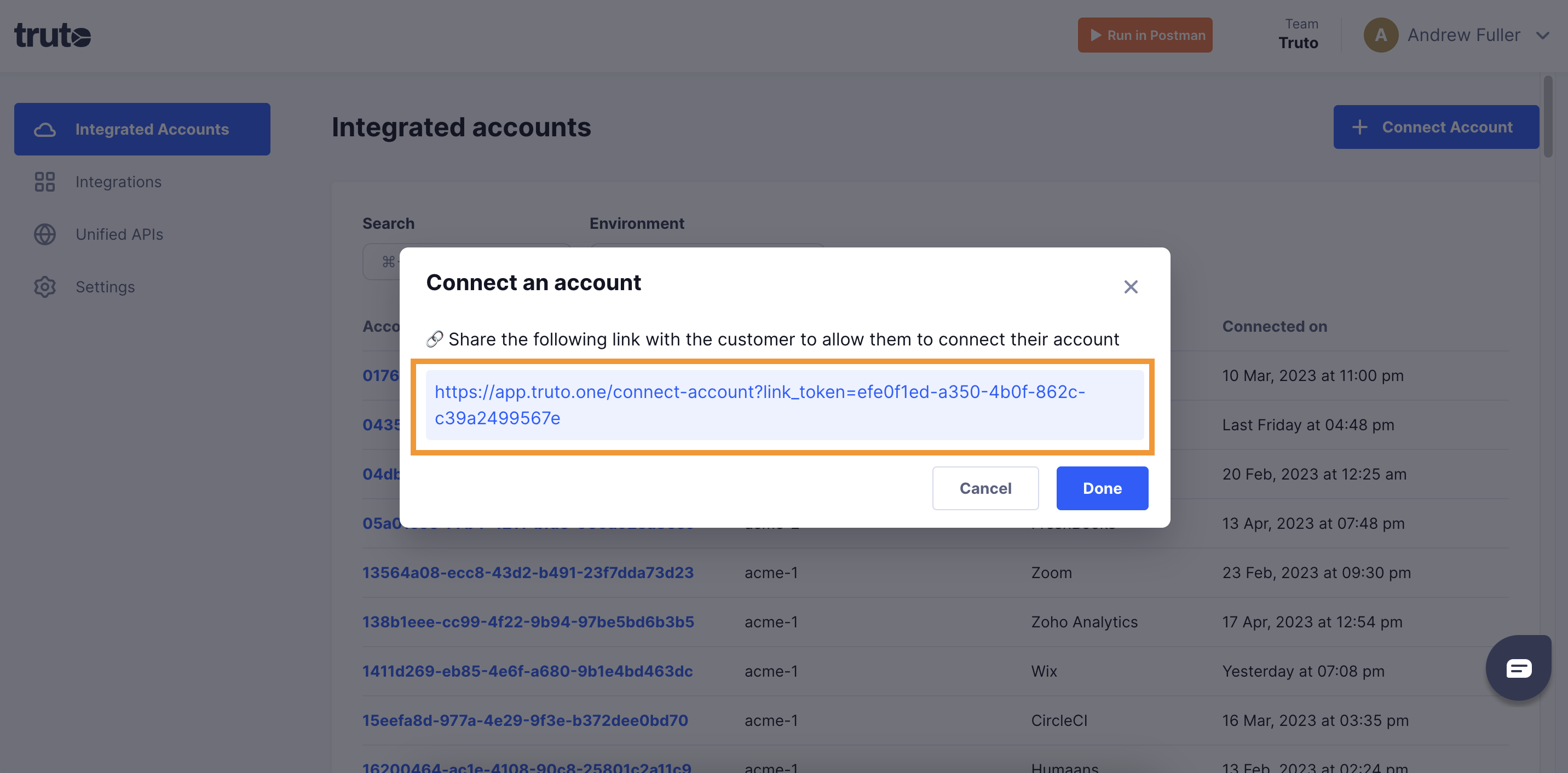
-
Select Keap

-
Choose how to connect:
- OAuth 2.0: log in to your Keap account and allow access to Truto.
- API Key: enter a Keap Personal Access Token, created in the Keap developer portal. Click Connect.
-
You should now see a connection successful message. You can now close this tab.
-
Go to your Truto account, and you should see the new Keap integration under Integrated Accounts. Click on the Account ID to view the details and initiate API calls.