Vercel
Vercel connects with an access token.
Install the Vercel integration
Install Vercel from Available integrations in each environment you connect accounts from.
Create an access token
- Sign in to Vercel. In the top-right corner of the dashboard, click your profile picture and select Settings.

- Select Tokens in the sidebar.
- Enter a name, choose the scope (the teams that can use the token) and an expiration date.
- Click Create Token.

- Copy the token. Vercel doesn't show it again.
Connect a Vercel account
-
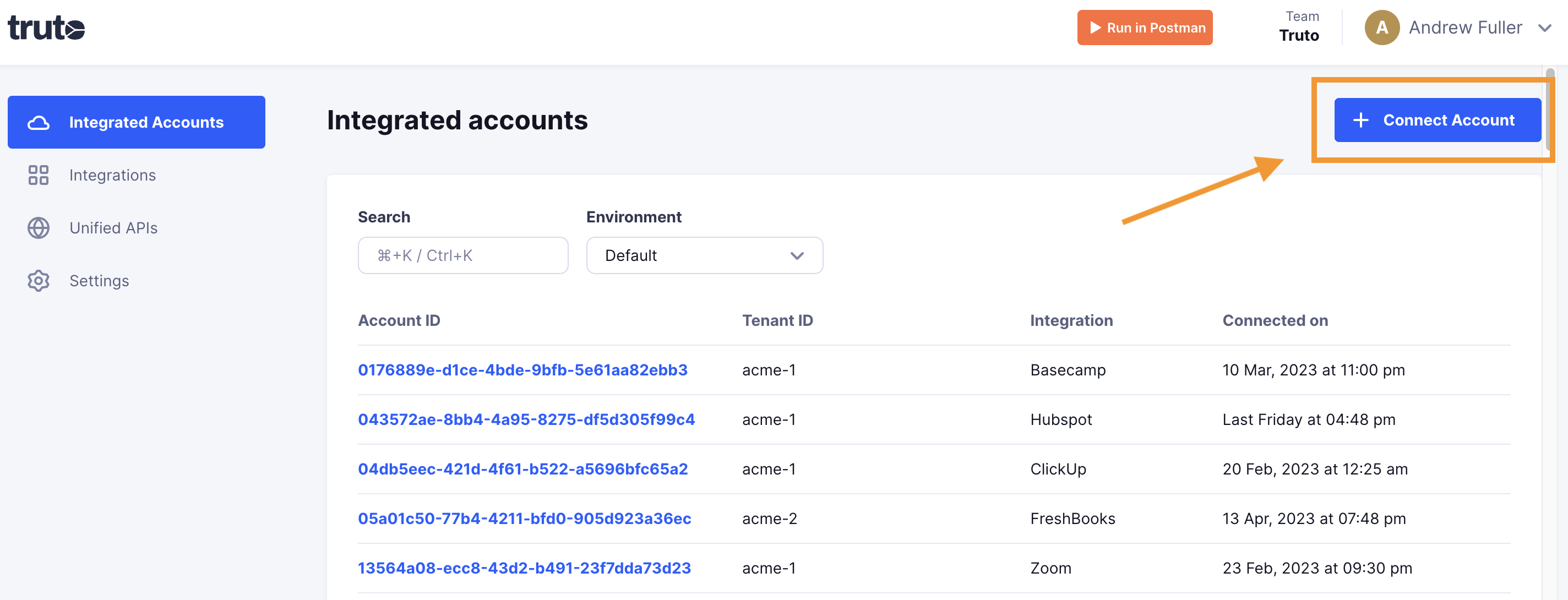
Click Connect Account.
-
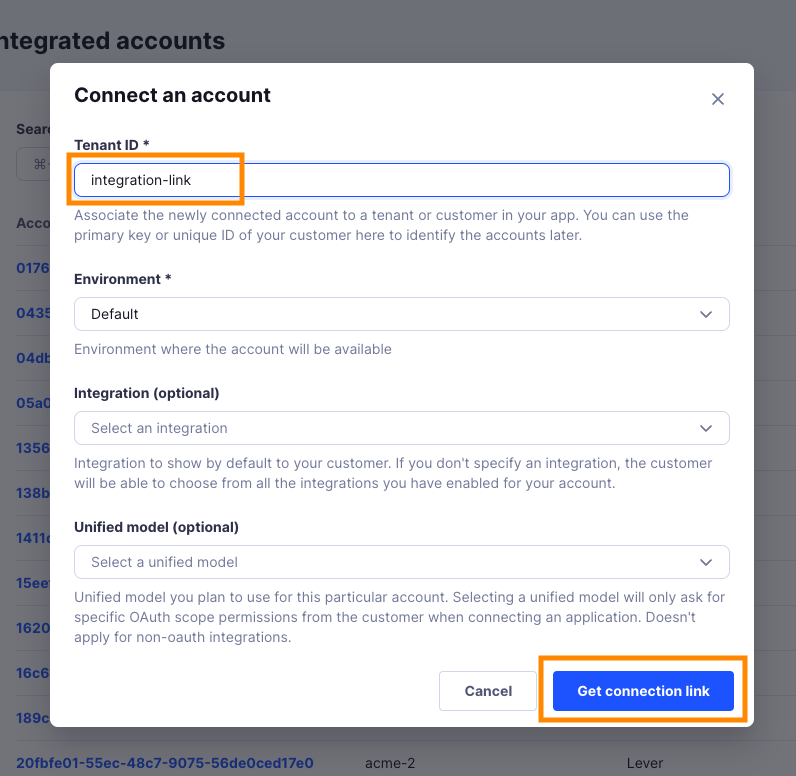
Enter a Tenant ID. This can be any ID you choose. Click Get connection link.
-
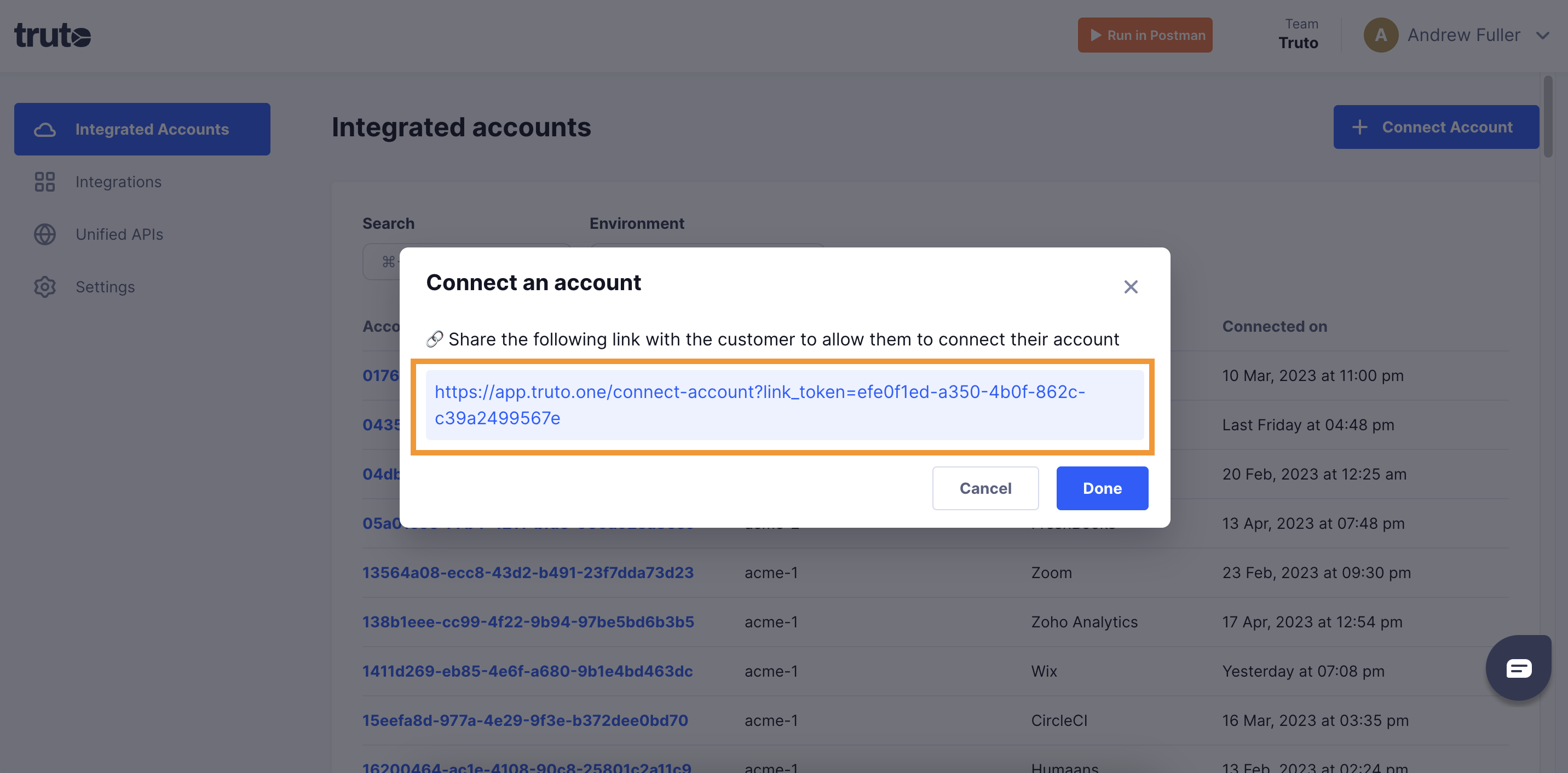
Open the generated link. You can also share it with your customer so they connect their own Vercel account.
-
Select Vercel.
-
Fill in the form and click Connect:
Field Required What to enter API Key Yes Your Vercel access token. -
Close the tab when you see the connection successful message. The new account appears under Integrated Accounts. Click its Account ID to see its details and make API calls.