SAP SuccessFactors
SAP SuccessFactors connects to the OData API with basic authentication: an account login name and password, your company ID and your data center's API host.
- The account you connect with must have the Allow Admin to Access OData API through Basic Authentication permission.
Install the SAP SuccessFactors integration
Install SAP SuccessFactors from Available integrations in each environment you connect accounts from.
Allow OData API basic authentication
- Grant the user you connect with the Allow Admin to Access OData API through Basic Authentication permission.
- In Admin Center → Manage OData API Basic Authentication, set access to Always. Never blocks the connection, and Restrict access to below IPs blocks it unless Truto's requests come from an address on the list.
The API host depends on your data center, for example api4.successfactors.com. Find it in Admin Center → OData API Data Inbound Authorization, or ask your SAP admin. Your company ID is in Admin Center → Company Info, or in the URL while you're signed in.
Connect a SAP SuccessFactors account
-
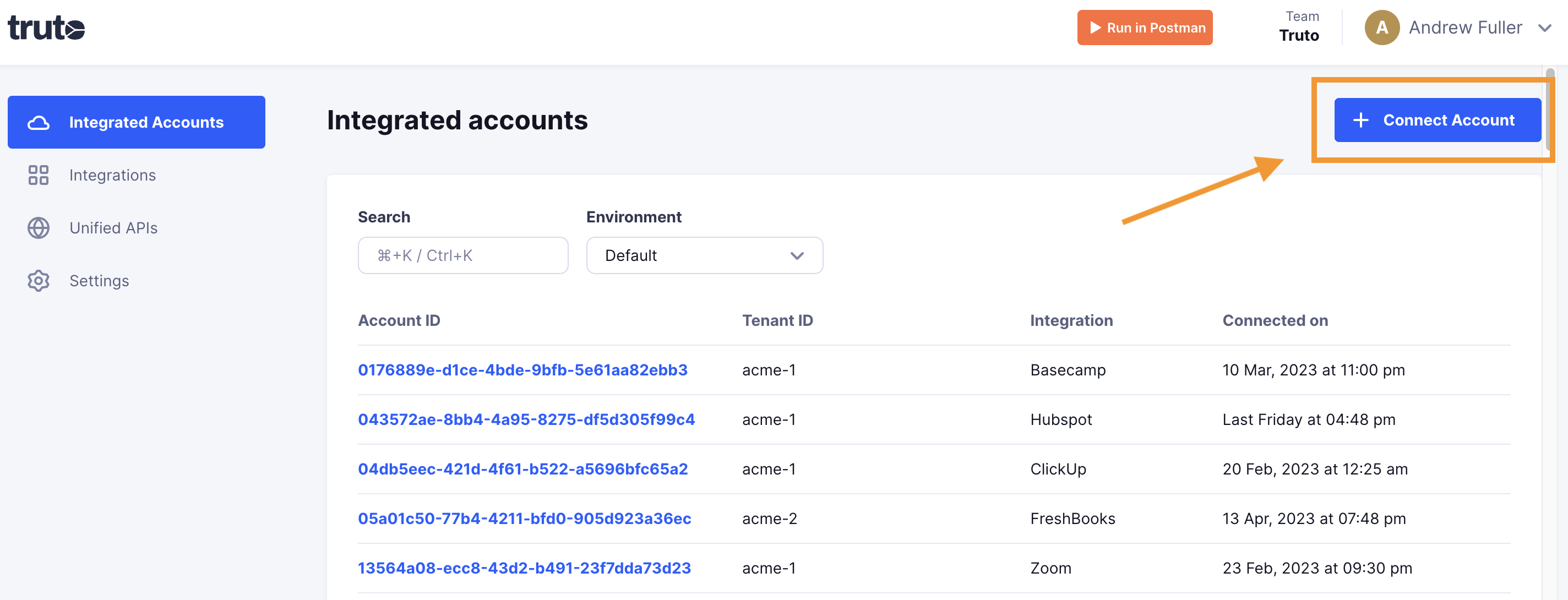
Click Connect Account.
-
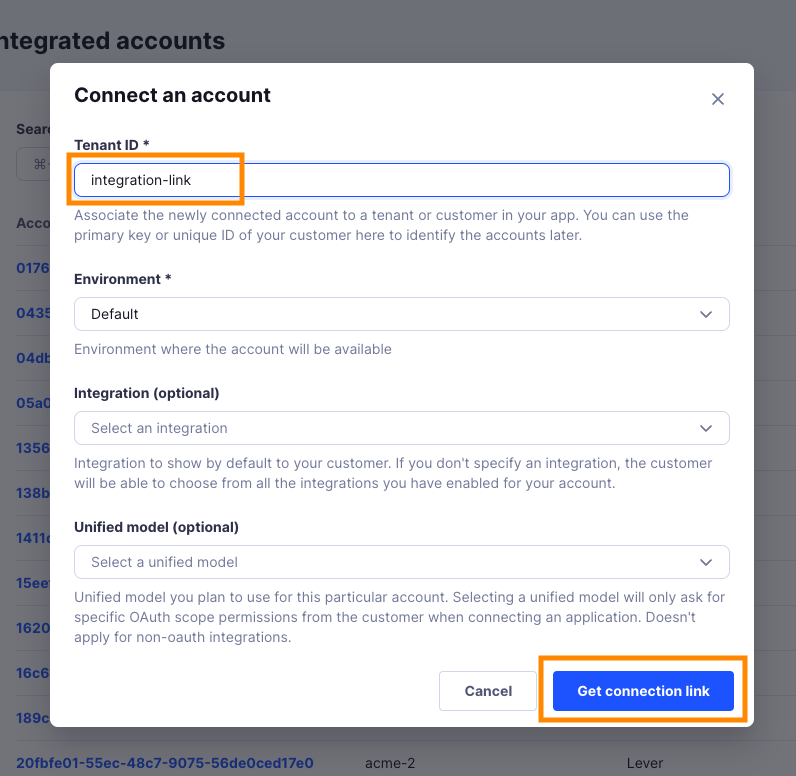
Enter a Tenant ID. This can be any ID you choose. Click Get connection link.
-
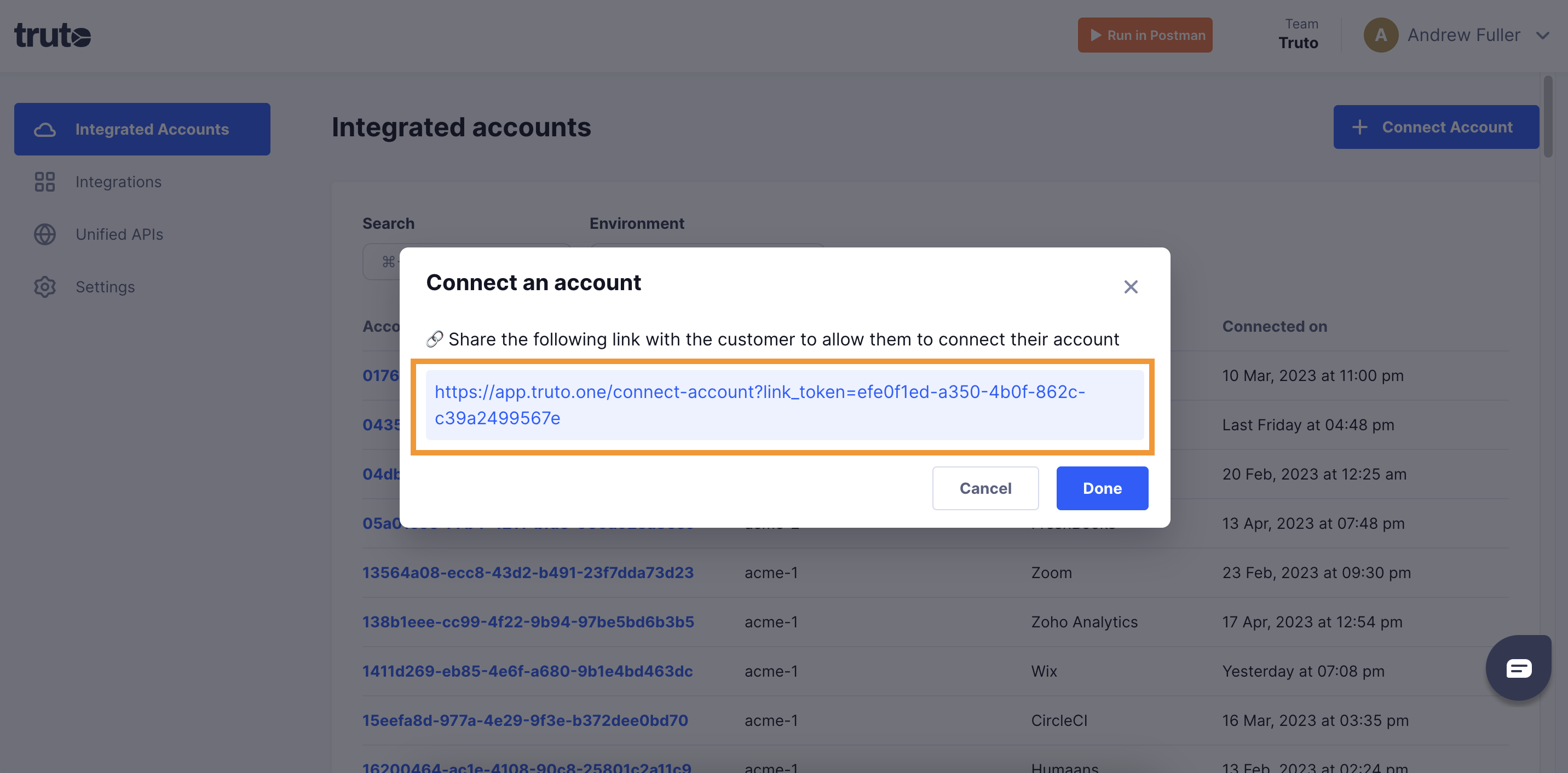
Open the generated link. You can also share it with your customer so they connect their own SAP SuccessFactors account.
-
Select SAP SuccessFactors.
-
Fill in the form and click Connect:
Field Required What to enter API Host Yes Your data center's API host, for example api4.successfactors.com.Company ID Yes Your SAP SuccessFactors company ID. Username (Account Login Name) Yes The account login name, not the employment username. Find it in Admin Center → Manage Users or on the login screen. Password Yes The password for that account login name. -
Close the tab when you see the connection successful message. The new account appears under Integrated Accounts. Click its Account ID to see its details and make API calls.