Opsgenie
Opsgenie connects with an API key and the instance (US or EU) your account is on.
Info
- You need to be an Opsgenie admin. Custom user roles need the Standard or Enterprise plan.
Install the Opsgenie integration
Install Opsgenie from Available integrations in each environment you connect accounts from.
Create an API key
- Sign in to Opsgenie and go to Settings → App settings → API key management.
- Click Add new API key.

- Enter a name and select the access rights for the key. Click Add API key.

- Copy the key.
Connect an Opsgenie account
-
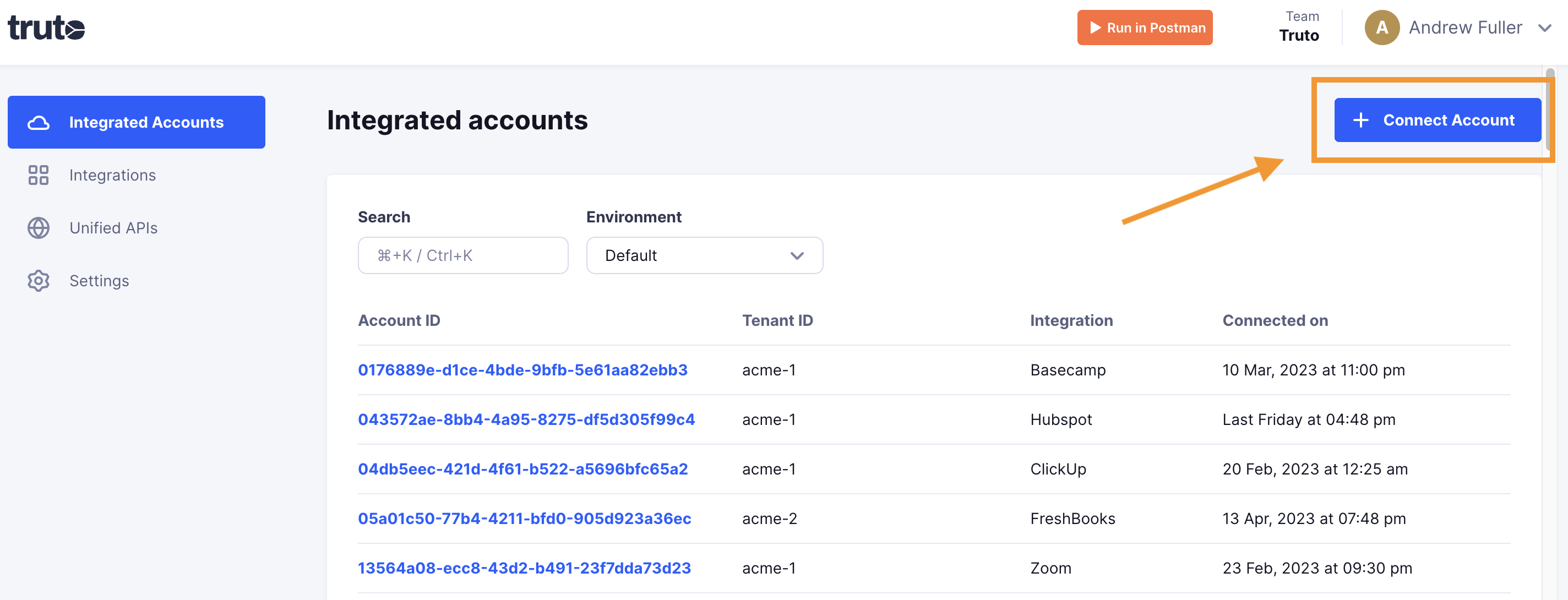
Click Connect Account.
-
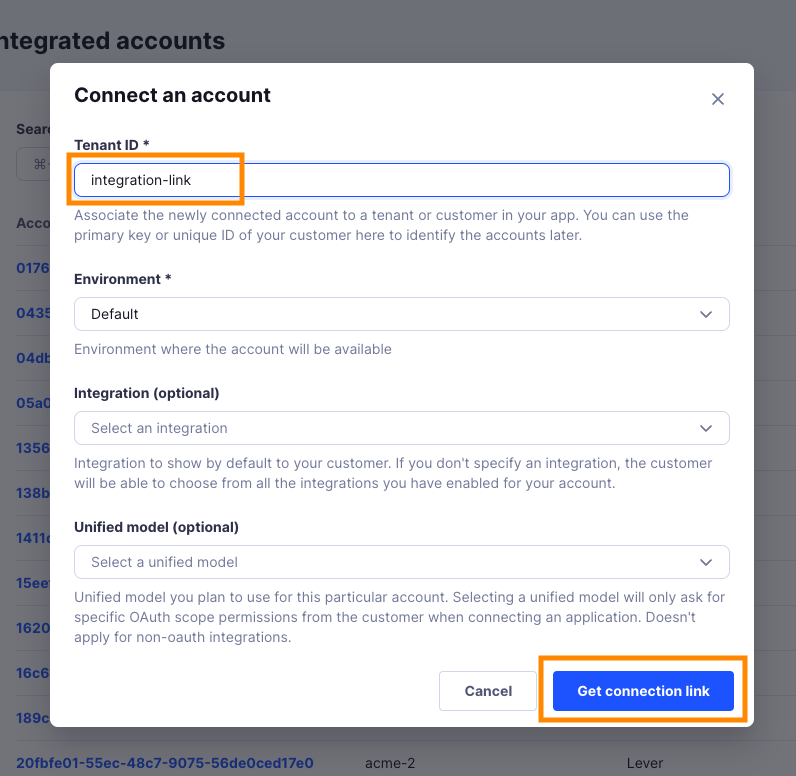
Enter a Tenant ID. This can be any ID you choose. Click Get connection link.
-
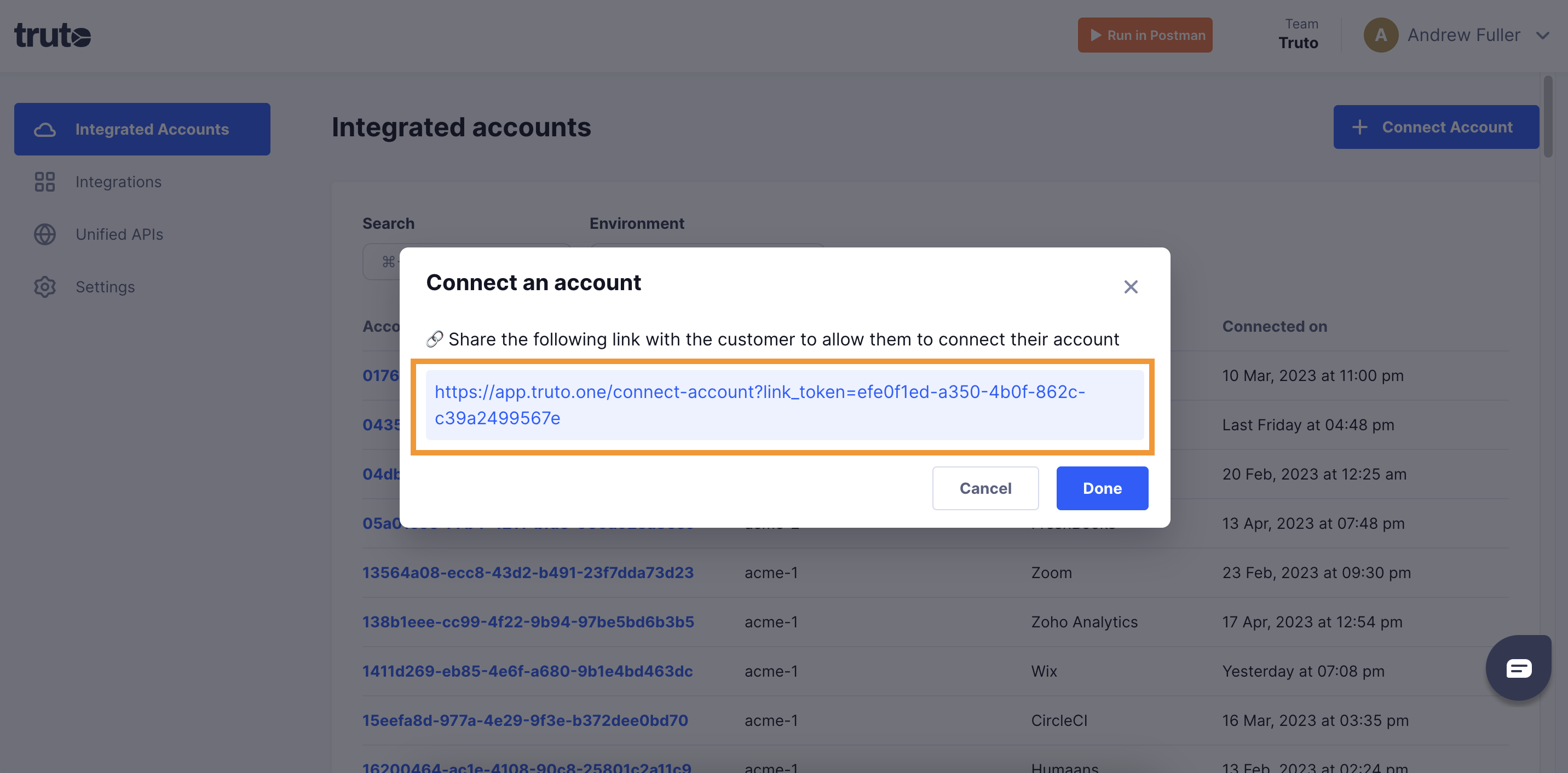
Open the generated link. You can also share it with your customer so they connect their own Opsgenie account.
-
Select Opsgenie.
-
Fill in the form and click Connect:
Field Required What to enter API Key Yes Your Opsgenie API key. Base URL Instance Yes Pick EU if your Opsgenie account is on the EU instance. Pick one of EU, US. Defaults to US. -
Close the tab when you see the connection successful message. The new account appears under Integrated Accounts. Click its Account ID to see its details and make API calls.