OpenVPN CloudConnexa
OpenVPN CloudConnexa connects with API credentials (a Client ID and Client Secret) that Truto exchanges for tokens with the OAuth 2.0 client credentials grant.
- You need to be the Owner of the CloudConnexa account.
Install the OpenVPN CloudConnexa integration
Install OpenVPN CloudConnexa from Available integrations in each environment you connect accounts from.
Create API credentials
- Sign in to CloudConnexa and go to API & Logs → API.

- Click Create Credentials.

- Enter a name. Keep the default one-month lifetime or pick two weeks, six months or one year. Optionally allow only the IP range calls come from. Click Create.

- Back on the API page, turn on the CloudConnexa API with the toggle.

- Copy the Client ID and Client Secret.
The company name is in the CloudConnexa URL in your browser.

API credentials expire at the end of their lifetime. After that, create new credentials and reconnect the account.
Connect an OpenVPN CloudConnexa account
-
Click Connect Account.
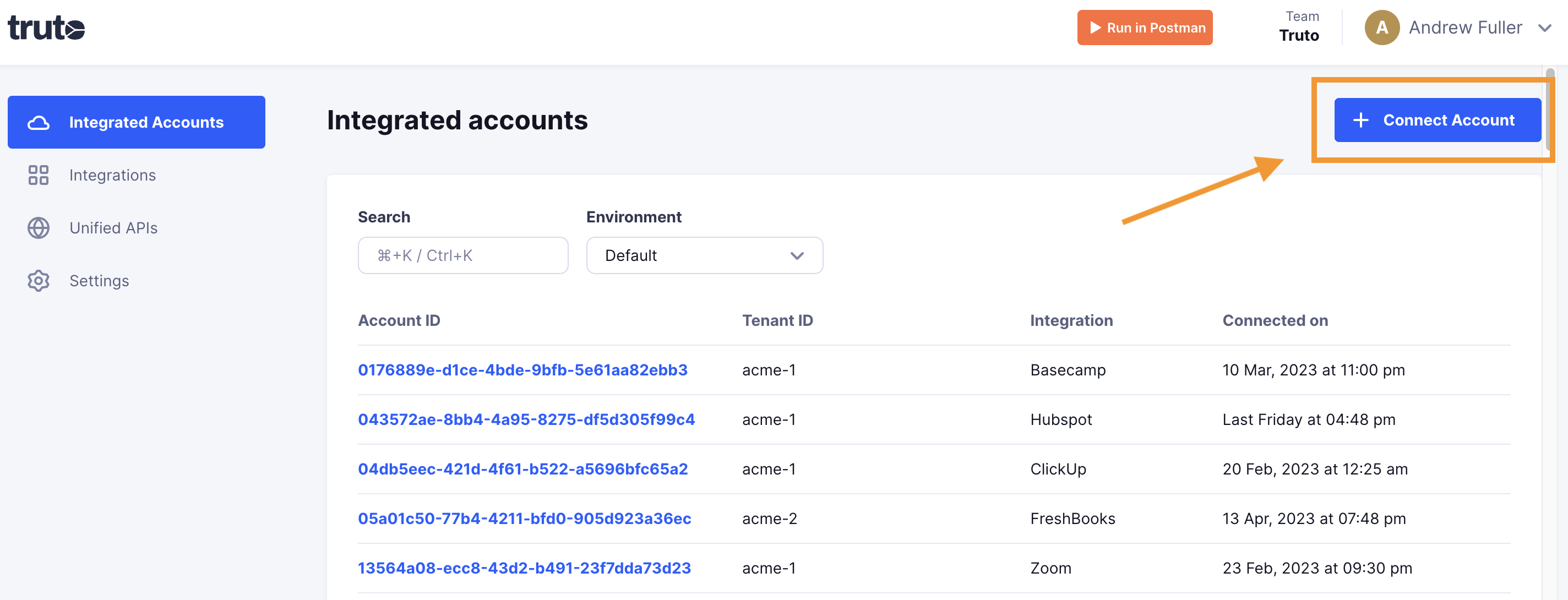
-
Enter a Tenant ID. This can be any ID you choose. Click Get connection link.
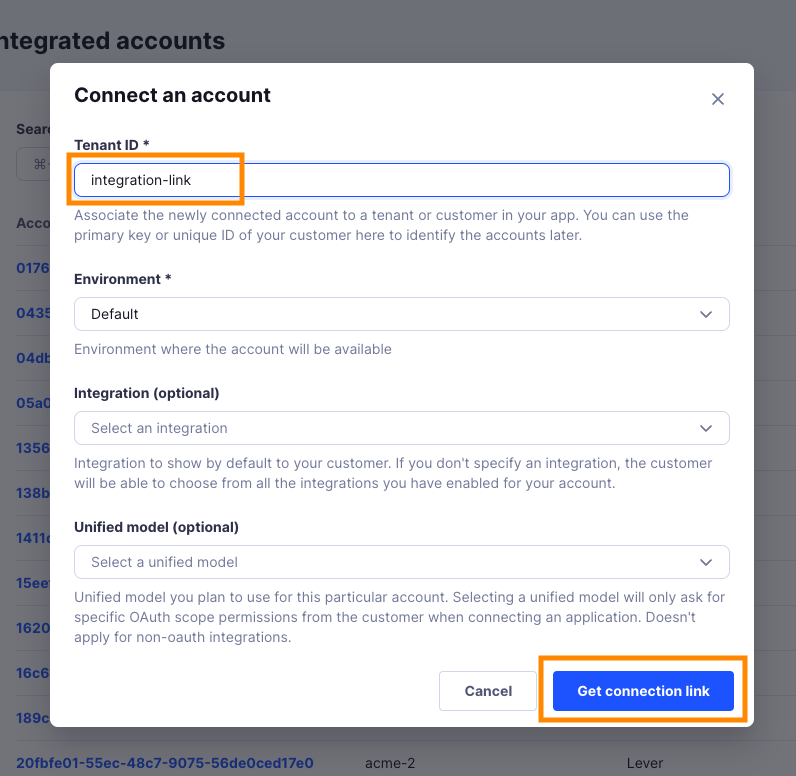
-
Open the generated link. You can also share it with your customer so they connect their own OpenVPN CloudConnexa account.
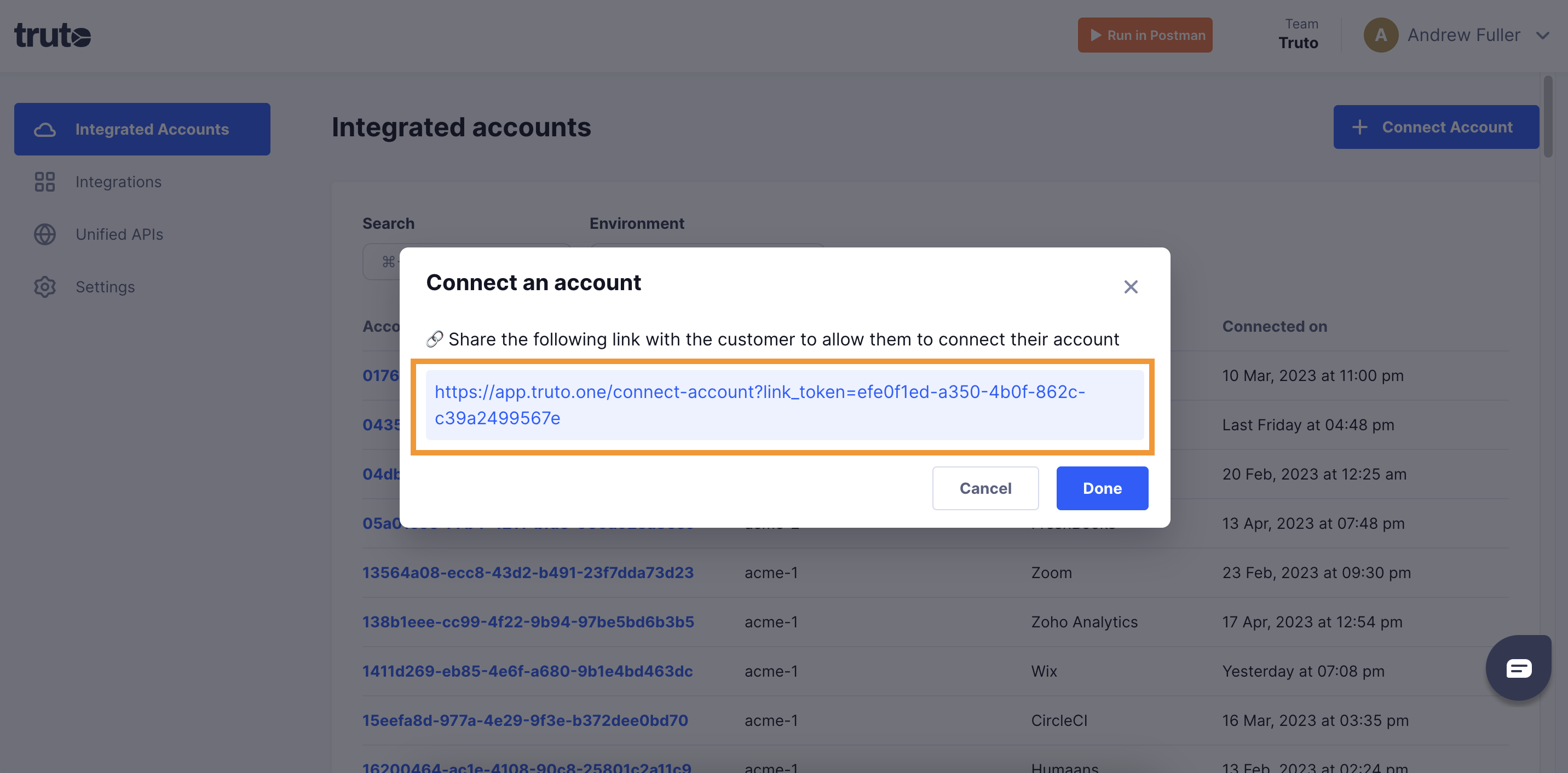
-
Select OpenVPN CloudConnexa.
-
Fill in the form and click Connect:
Field Required What to enter Client ID Yes The API credentials' Client ID. Client Secret Yes The API credentials' Client Secret. Company Name No The first part of your API endpoint, https://<company_name>.api.openvpn.com. The form doesn't enforce it, but Truto calls this endpoint, so enter it. -
Close the tab when you see the connection successful message. The new account appears under Integrated Accounts. Click its Account ID to see its details and make API calls.