Harness
Harness connects with an API key token and your Harness base URL.
Info
- You need the Account Admin role in Harness.
Install the Harness integration
Install Harness from Available integrations in each environment you connect accounts from.
Create an API key and token
- Sign in to Harness and open your user profile.
- Under My API Keys, select API Key. Enter a Name; Description and Tags are optional. Click Save.
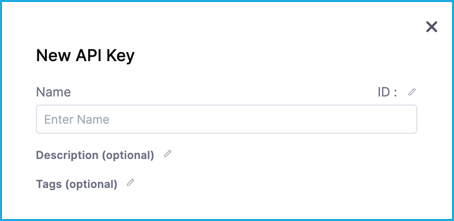
- Under the new key, select Token. Enter a Name.
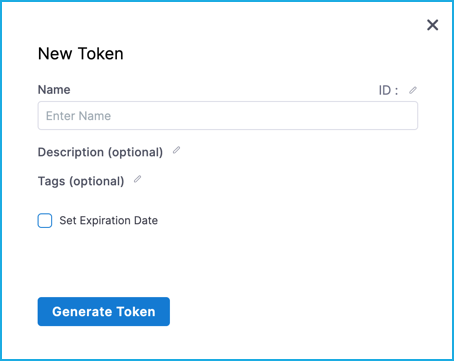
- To make the token expire, select Set Expiration Date and enter a date. Click Generate Token.
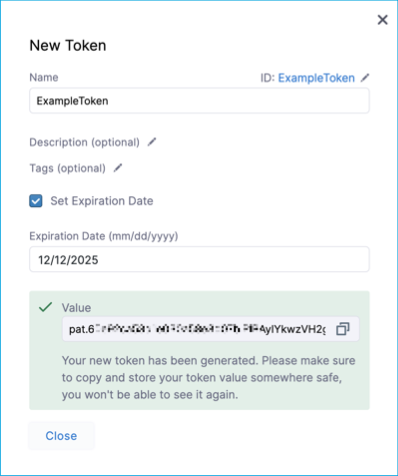
- Copy the token.
The Base URL is the address of Harness in your browser, for example https://app.harness.io.

Connect a Harness account
-
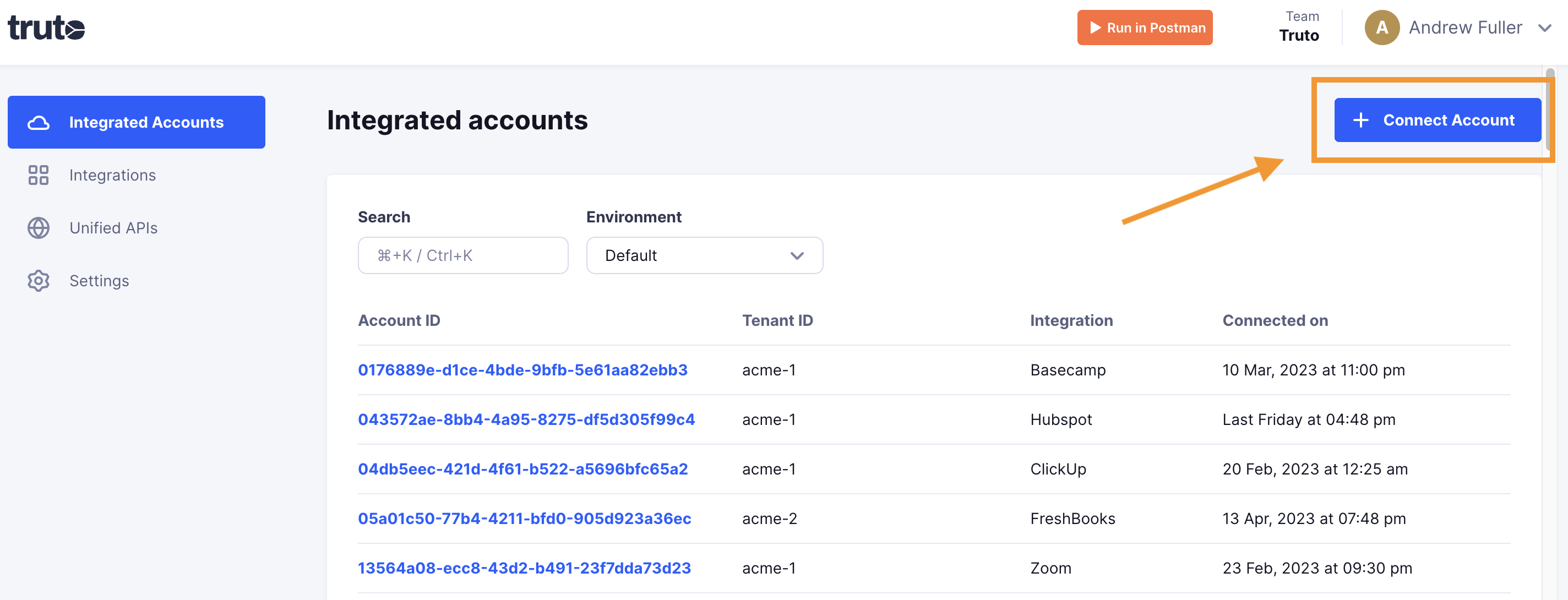
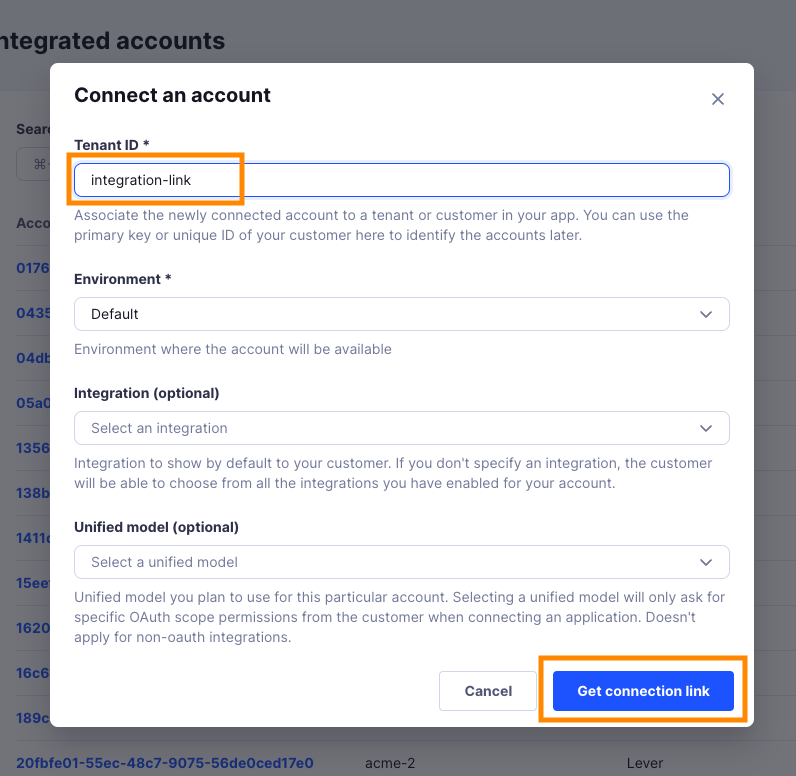
Click Connect Account.
-
Enter a Tenant ID. This can be any ID you choose. Click Get connection link.
-
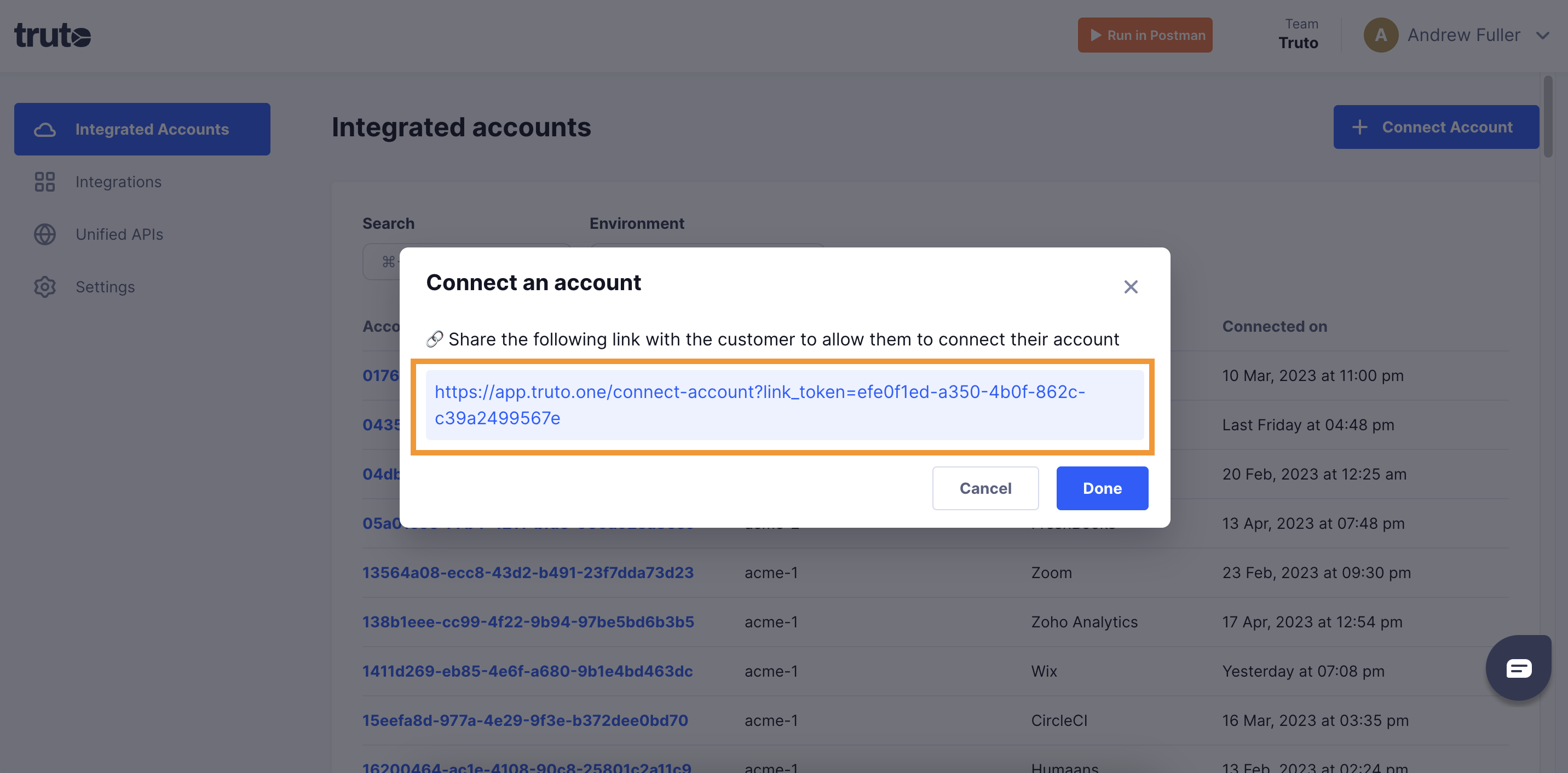
Open the generated link. You can also share it with your customer so they connect their own Harness account.
-
Select Harness.
-
Fill in the form and click Connect:
Field Required What to enter API Key Yes The token from Create an API key and token. Base URL Yes The Harness address in your browser, for example https://app.harness.io. -
Close the tab when you see the connection successful message. The new account appears under Integrated Accounts. Click its Account ID to see its details and make API calls.