Greenhouse
Greenhouse connects with a Harvest API key.
Info
- You need a Greenhouse user who can manage all of the organization's API credentials.
Install the Greenhouse integration
Install Greenhouse from Available integrations in each environment you connect accounts from.
Create a Harvest API key
- In Greenhouse Recruiting, click the Configure icon on the navigation bar, then Dev Center on the left.
- Click API Credential Management, then Create new API credentials.
- Fill in the form:
- API type: Harvest. The Harvest API Key field in Truto takes a Harvest key, not Harvest v3 (OAuth) credentials.
- Partner: Unlisted vendor, or Custom if you're building your own integration.
- Description: a name you'll recognise.
- Click Manage permissions. Greenhouse shows the key only once: click Copy, store it somewhere safe, then click I have stored the API key.
- Assign the permissions for the endpoints you need, and click Save.
See Greenhouse's Create a Harvest API key for an integration.
Connect a Greenhouse account
-
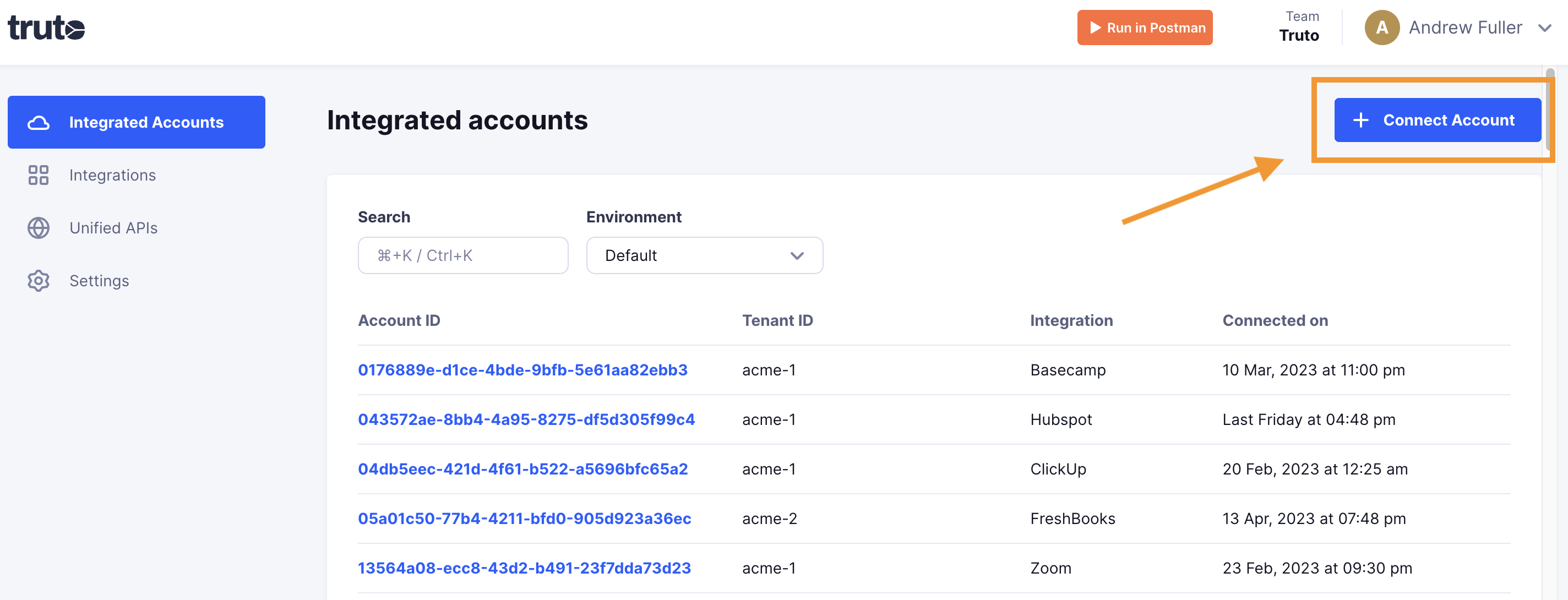
Click Connect Account.
-
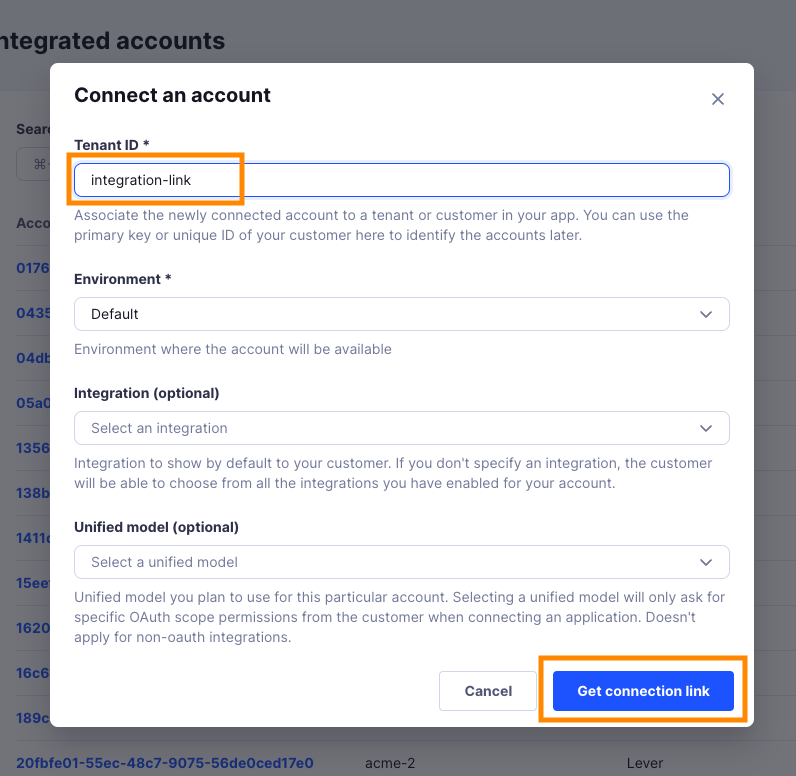
Enter a Tenant ID. This can be any ID you choose. Click Get connection link.
-
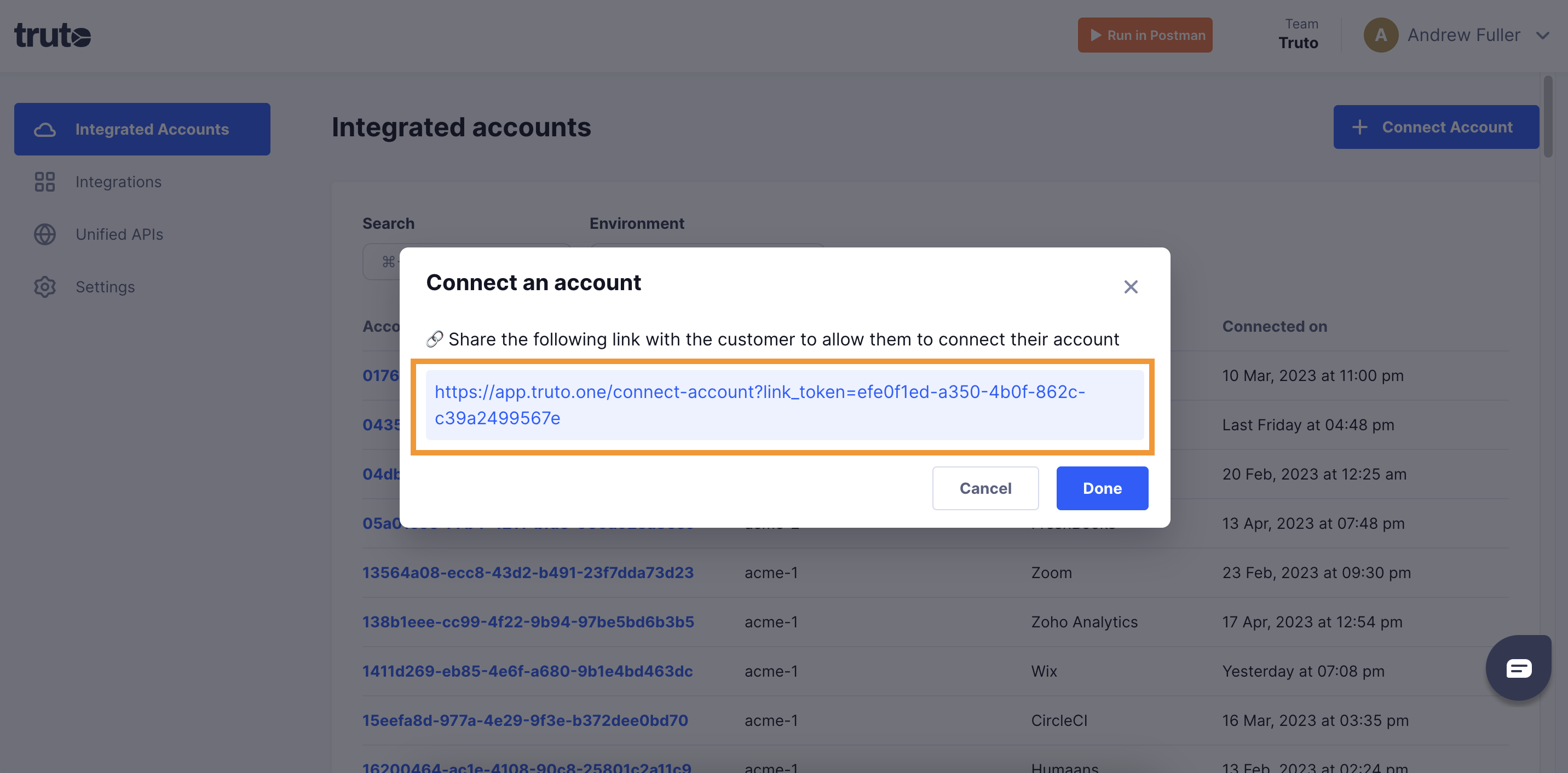
Open the generated link. You can also share it with your customer so they connect their own Greenhouse account.
-
Select Greenhouse.
-
Fill in the form and click Connect:
Field Required What to enter Harvest API Key Yes The Harvest API key. See Create a Harvest API key. -
Close the tab when you see the connection successful message. The new account appears under Integrated Accounts. Click its Account ID to see its details and make API calls.