Sync Jobs overview
A sync job is a reusable pipeline that pulls data from connected accounts and writes it to destinations such as webhooks, datastores, or SuperQuery tables. You define the job once in your environment, then run it many times — each execution is a sync job run.
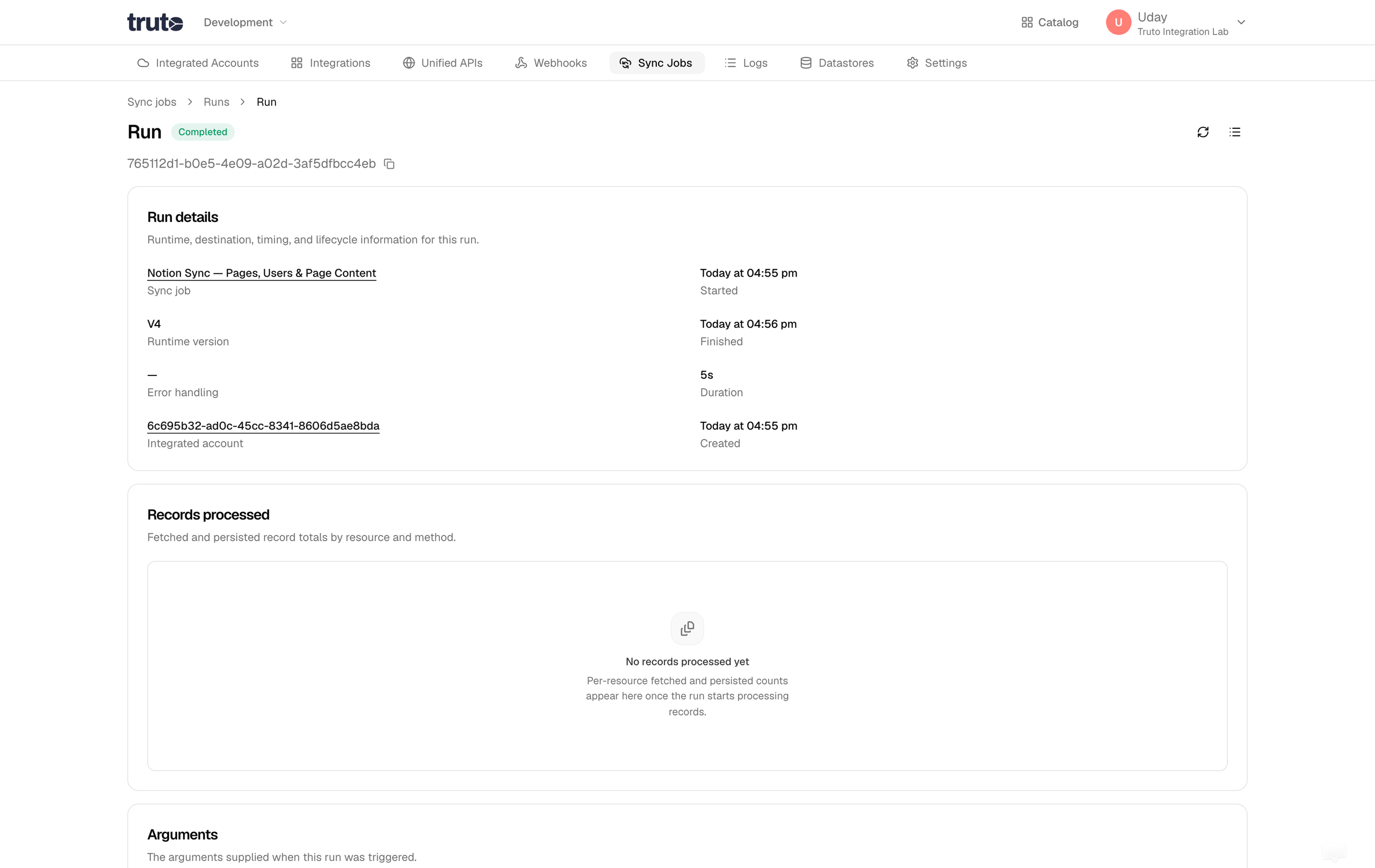
In app.truto.one, open Sync Jobs from the sidebar. The page has two tabs — Jobs and Templates — plus detail views for individual jobs, their runs, and their schedules.
For a screen-by-screen walkthrough, see Using the Sync Jobs UI. To stream records to a webhook on a schedule, see the RapidBridge overview.
Sync Jobs
A sync job holds the pipeline definition: which resources to fetch, how to transform them, and where to send the results. Each job has a Label, an optional Integration, a Runtime version (version 4 is recommended for new jobs), and a Resources JSON definition.
From the Jobs tab you can search jobs, filter by environment, create a job, or open one to view its details.
Sync Job Runs
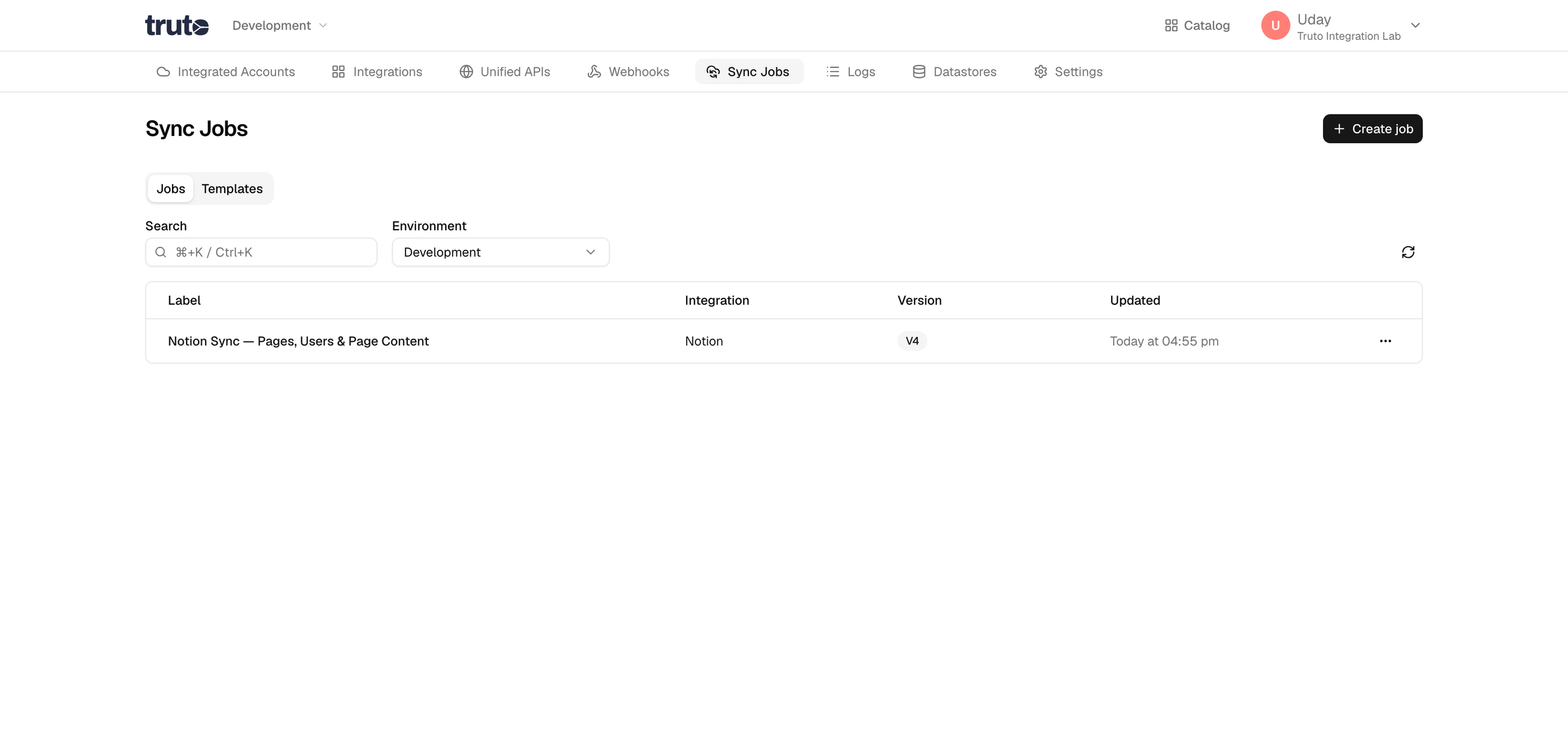
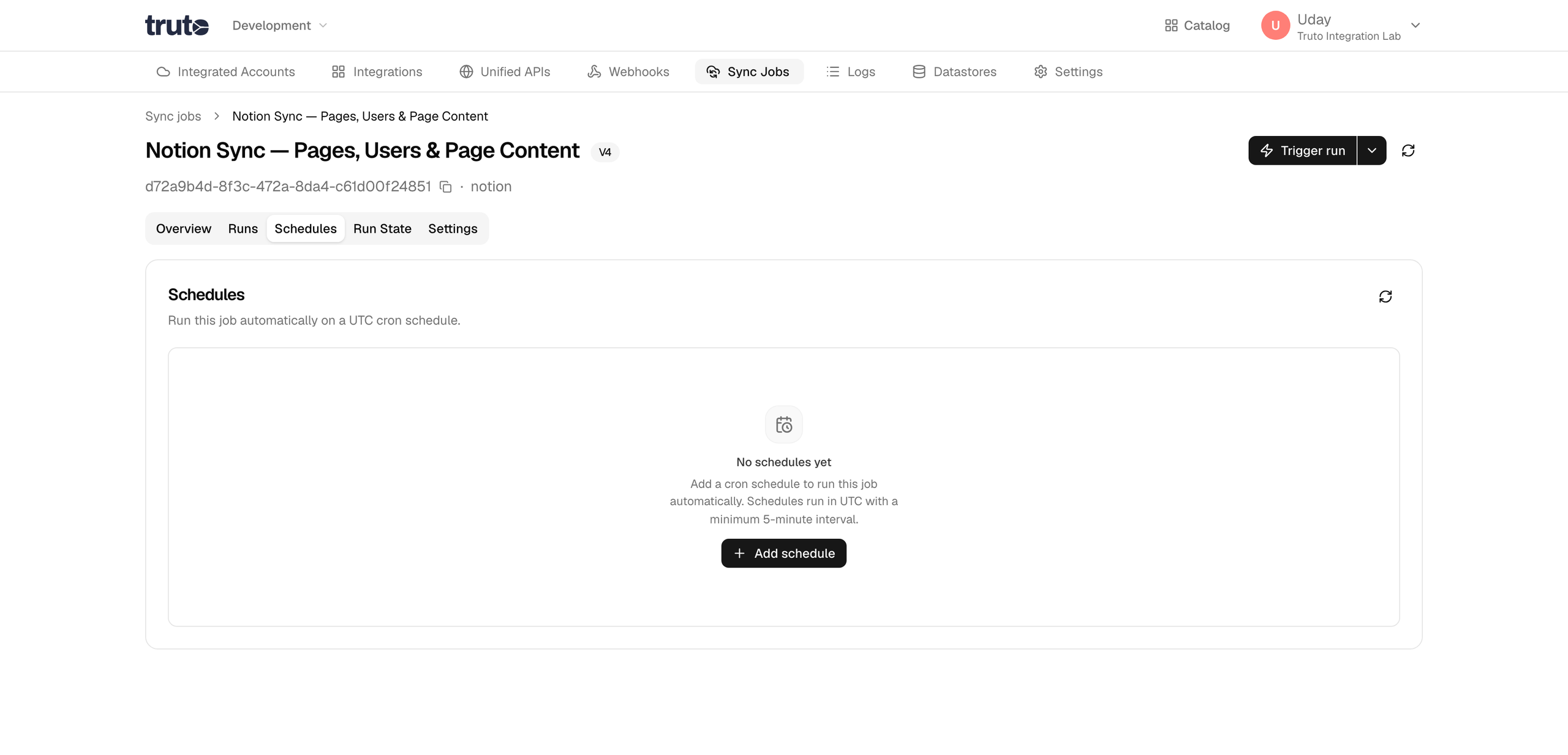
A sync job run is one execution of a sync job for a specific integrated account (and optional runtime arguments such as a webhook or datastore). Runs move through statuses such as Created, Running, Rate limited, Completed, Failed, and Stopped.
Trigger a run from a job's detail page with Trigger run, or let a schedule create runs automatically. Open the Runs tab on a job to filter by status or date, inspect duration and record counts, and drill into a single run.
Schedules
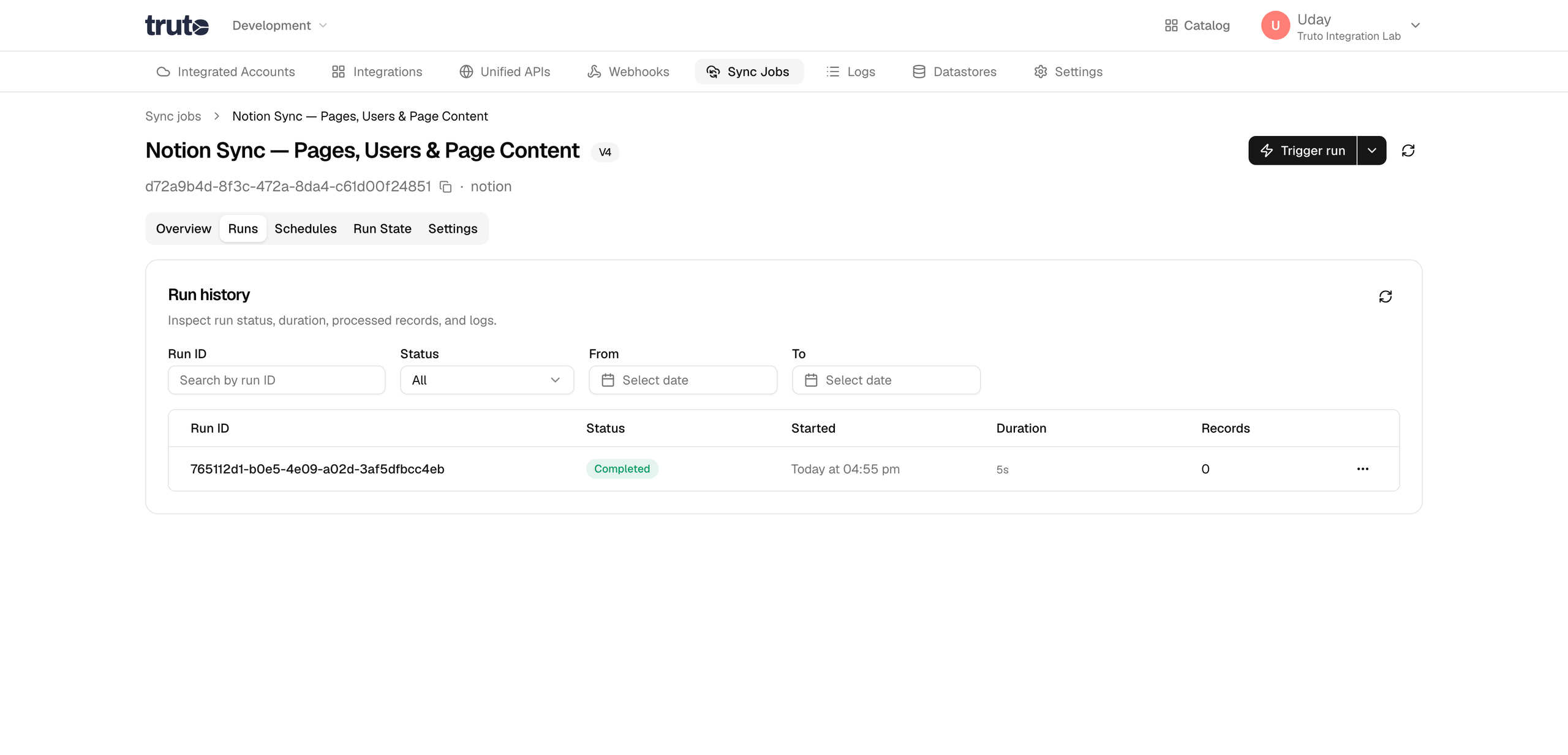
Schedules attach a UTC cron expression to a sync job so it runs automatically for a chosen integrated account and destination. From the Schedules tab on a job, click Add schedule to set the cron expression, target account, and default arguments. Schedules run in UTC with a minimum five-minute interval.
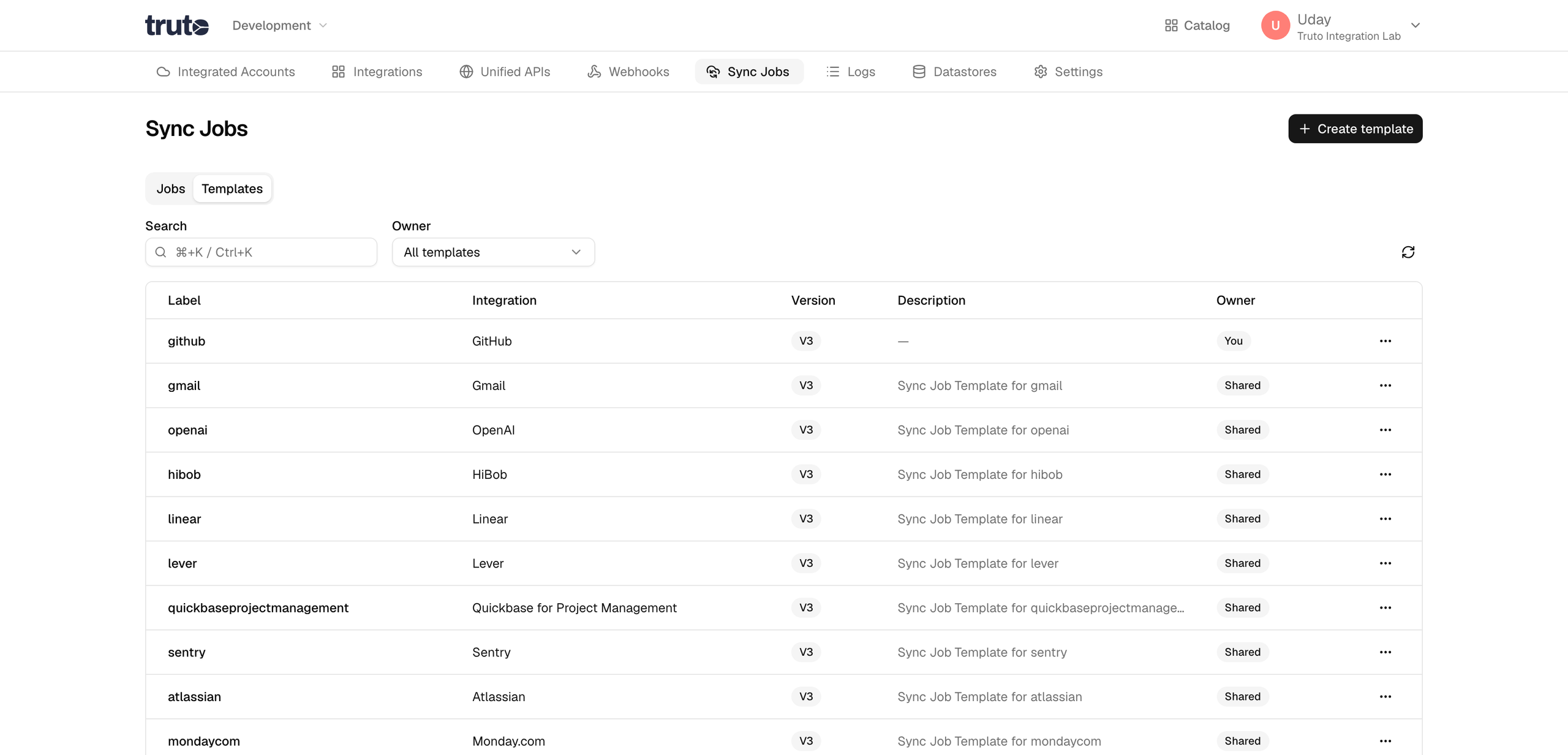
Templates
Templates are reusable sync job blueprints. Use them to share a pipeline across environments or to scaffold a new job without copying JSON by hand. The Templates tab lists each template's label, integration, version, description, and sharing status (Shared or Private).
Create a template with Create template, or open the row menu and choose Create job from template to start a new job from an existing blueprint.
Job detail views
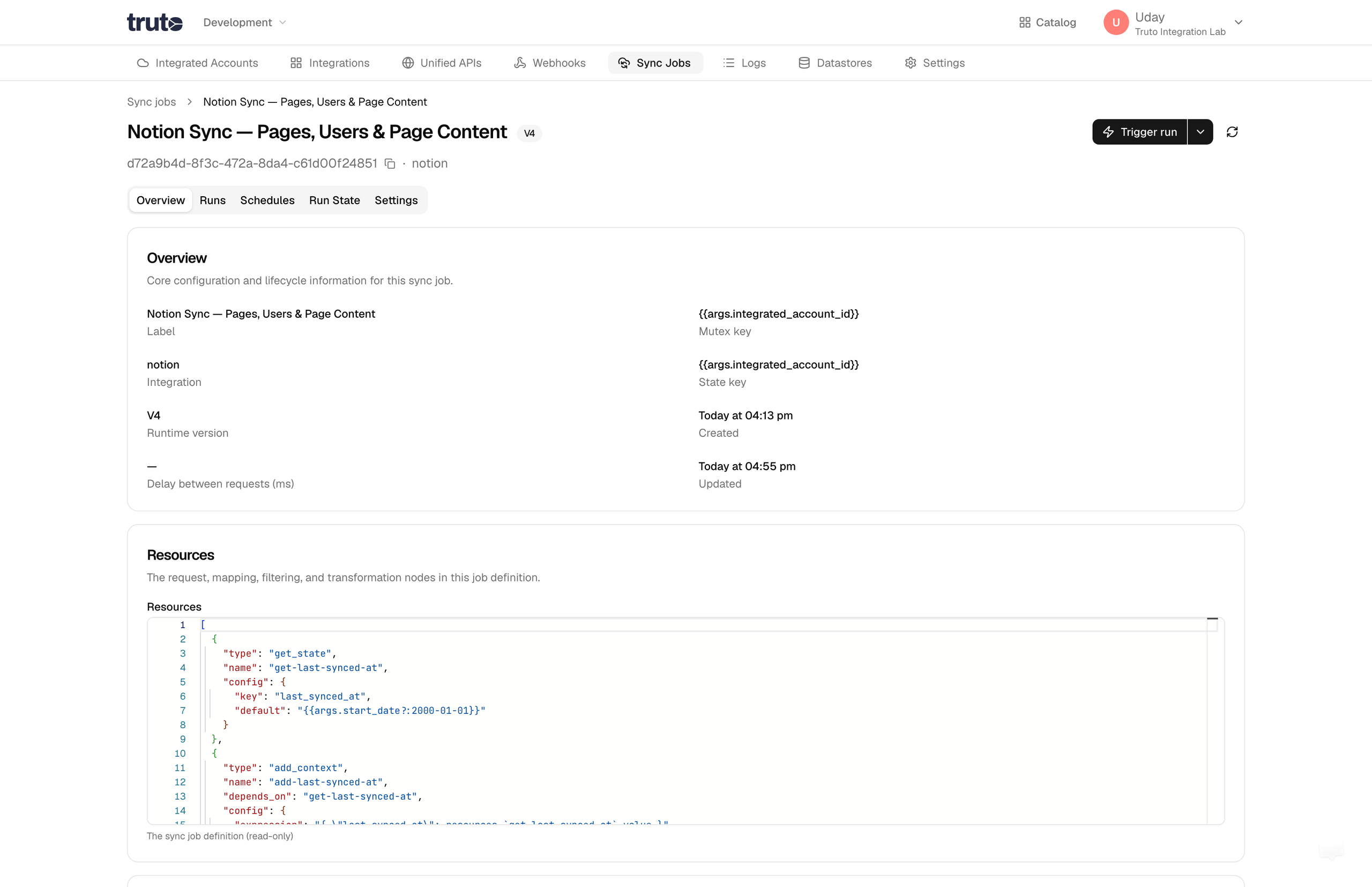
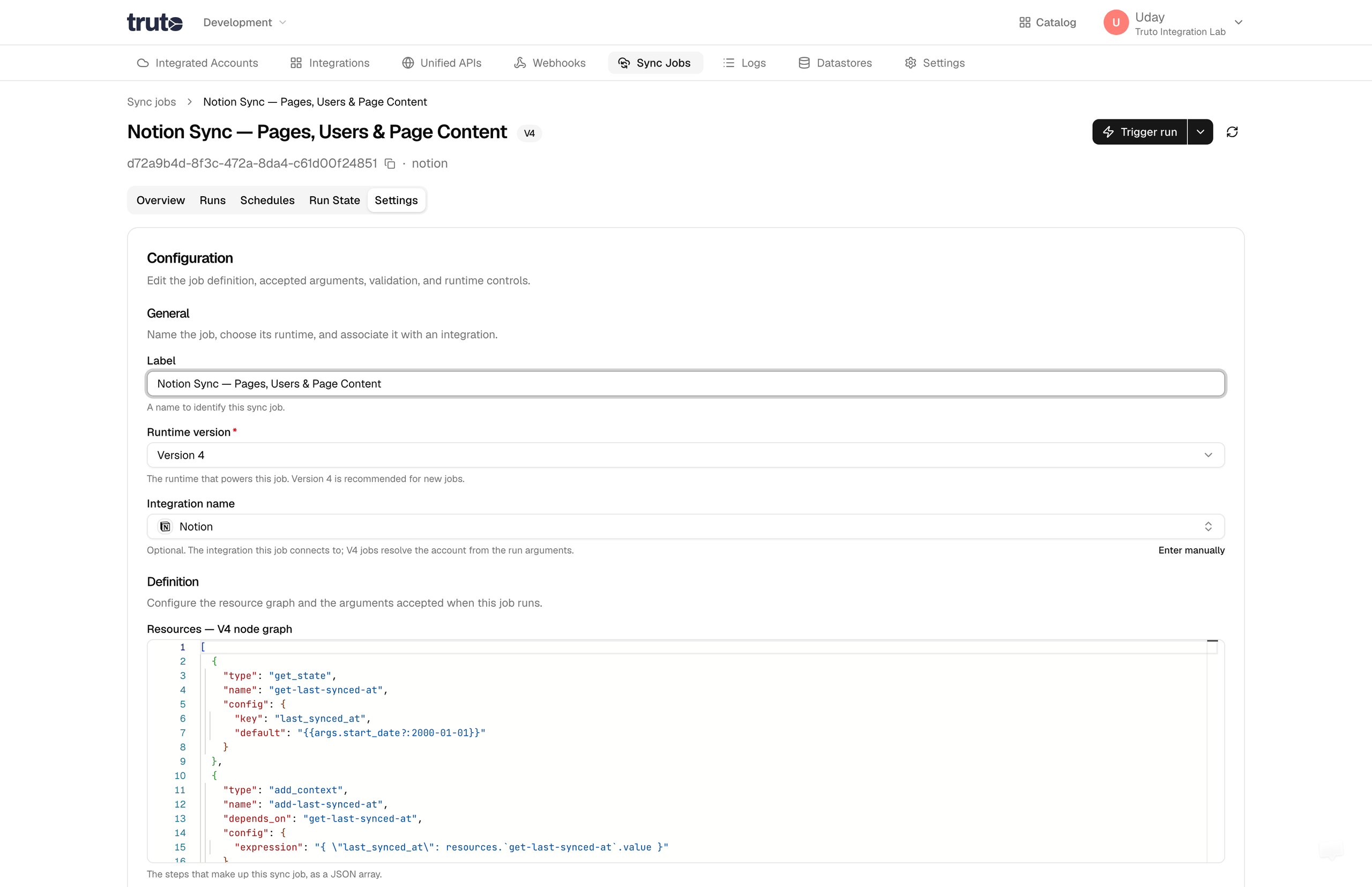
Click a job's label on the Jobs tab to open its detail page. Tabs along the top let you switch between:
- Overview — read-only summary of label, integration, runtime version, mutex and state keys, and the resources definition.
- Runs — execution history for this job.
- Schedules — cron triggers for this job.
- Settings — edit the job definition or delete the job.
Click a run ID on the Runs tab to open the run detail page. There you can see status, timing, error handling, destination arguments, records processed per resource, and the arguments passed for that run. Active runs can be stopped with Stop run.