Truto Assistant
Truto Assistant is an AI-powered chat sidebar built into the Truto dashboard. It lets you explore your workspace, run platform operations, and get answers about integrations and connected accounts using natural language.
Features
- Natural language queries — ask about your integrations, connected accounts, sync jobs, unified APIs, and more without memorizing API paths or navigation.
- Platform operations — list accounts, check sync job status, query data, and inspect integration configuration directly from chat.
- Deep links — responses include links to relevant pages in the dashboard so you can jump straight to what you need.
- Tool approval — write and destructive operations (create, update, delete) require explicit approval before executing.
- Workspace-aware — the assistant knows about your team's integrations, connected accounts, and configuration.
Setup
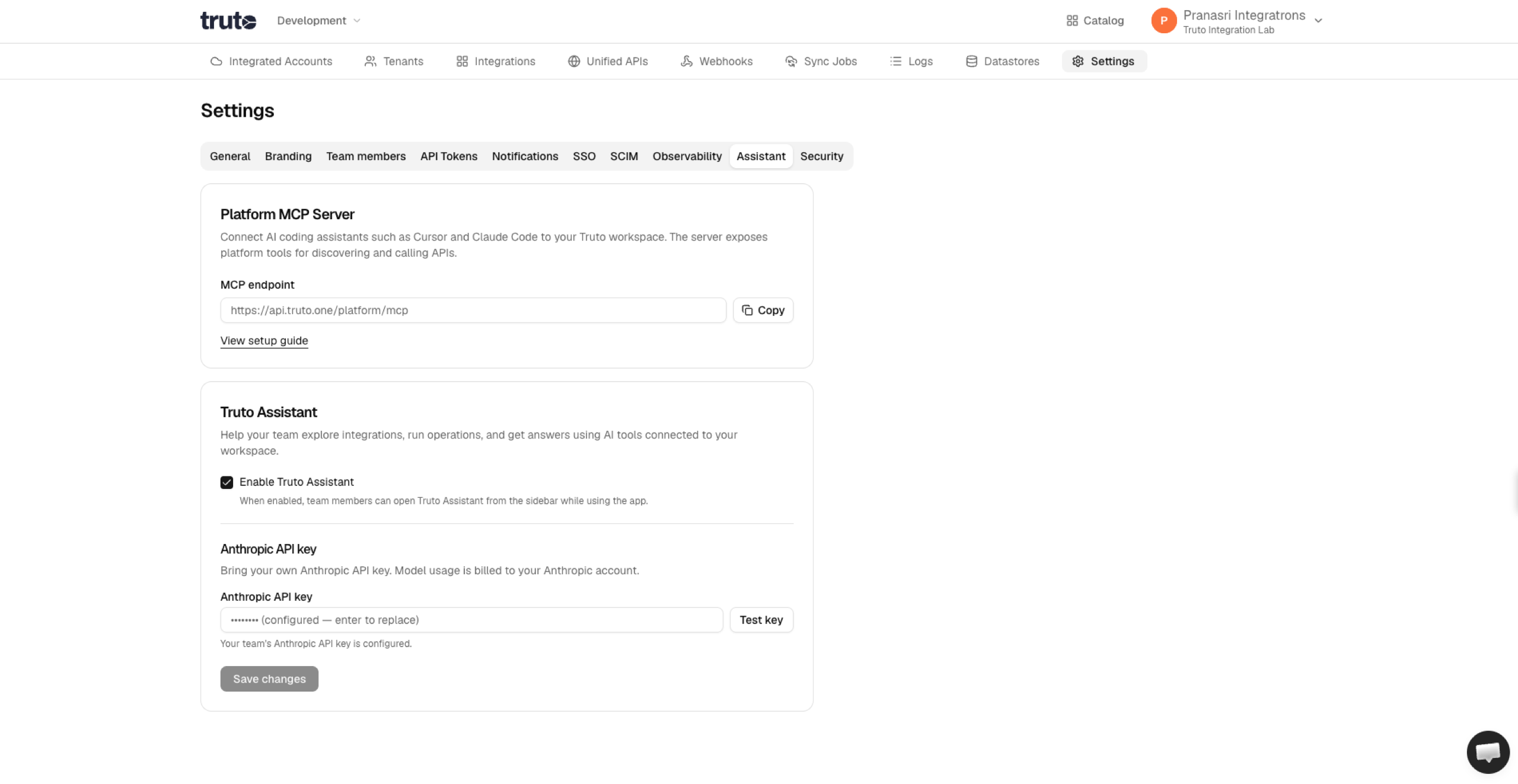
- Navigate to Settings → Assistant (the Truto Assistant page).
- Toggle Enable Truto Assistant on.
- Enter your Anthropic API key — Truto uses BYOK (Bring Your Own Key), so usage is billed directly to your Anthropic account.
- Click Test Key to verify the key works.
- Choose a default model (Claude Sonnet 4.6 is selected by default).
Only team admins can configure assistant settings.
Usage
- Open Truto Assistant from the dashboard sidebar to open the chat panel.
- Type a natural language question or command — for example, "List my connected HubSpot accounts" or "What sync jobs are failing?"
- The assistant will call platform tools to gather information. Read operations execute immediately; write operations show an approval prompt first.
- Use the model selector in the chat header to switch between models mid-conversation.
- The context meter in the header shows how much of the model's context window is in use.
Available models
| Model | Strengths |
|---|---|
| Claude Sonnet 4.6 (default) | Balanced speed and capability — recommended for most tasks |
| Claude Opus 4.6 | Most capable reasoning — best for complex multi-step operations |
| Claude Haiku 4.5 | Fast and economical — good for simple lookups |
You can switch models at any time using the selector in the chat header.
Security
- BYOK — your Anthropic API key is stored encrypted and never shared with other teams or used outside your workspace.
- Write approval — any tool call that would create, update, or delete a resource requires you to click Approve before it executes.
- Workspace scope — the assistant can only access data within your team's workspace. It cannot see other teams' resources.
- No training — conversations are sent to Anthropic's API under their standard data policy (messages are not used to train models).
Related
- Platform MCP Server — connect external AI tools (Cursor, Claude Desktop) to your workspace via MCP.