By Example: How Truto Helps Engineers Build Faster Integrations - Notion
Build post-connection configuration UI for SaaS integrations with Truto's RapidForm. Declarative JSON config, cascading selects, pagination for 40K+ pages, and JSONata validation.


Notion is a powerhouse. To leverage it to the fullest, you also need a powerful integration.
With our Notion integration rollout, we believe we've exceeded expectations - the integration supports reading from over 40,000 pages. It also offers an upgrade over the standard Notion page selector by introducing the ability to select pages based on parent-child relationships, among other features.
The integration enables users to connect their Notion accounts and select the files they wish to sync. This feature is incorporated with RapidForm. RapidForm is our solution that allows your users to easily choose specific files or folders in their accounts.
This approach also helps ensure that you maintain strong data integrity and privacy by requesting access only to specific files and pages from your customers.
Enabling RapidForm will help your engineering team skip over tedious UI tasks, and save time.
How it works
- Connect a Notion account
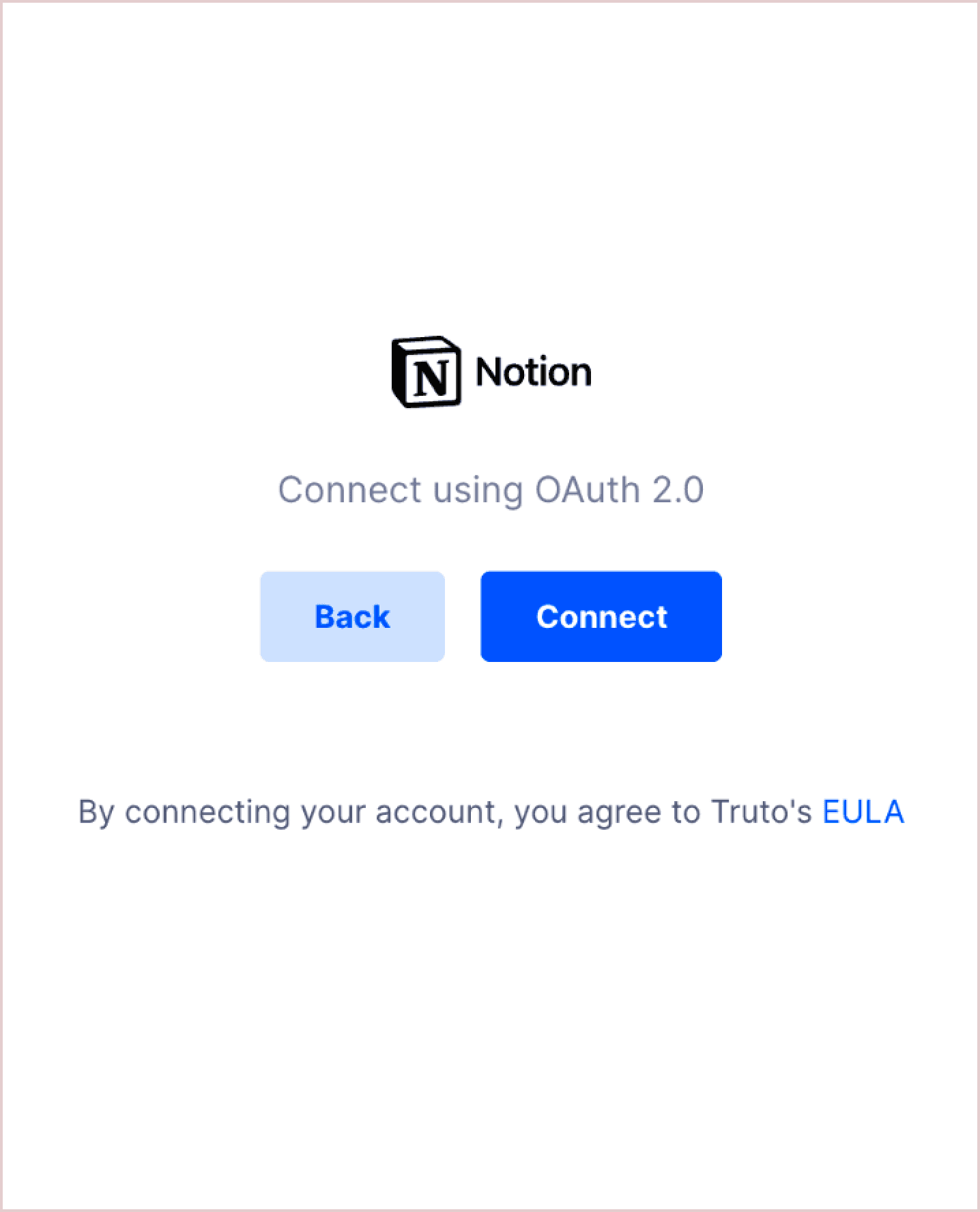
! OAuth 2.0 connection screen for Notion featuring the Notion logo and a blue Connect button.
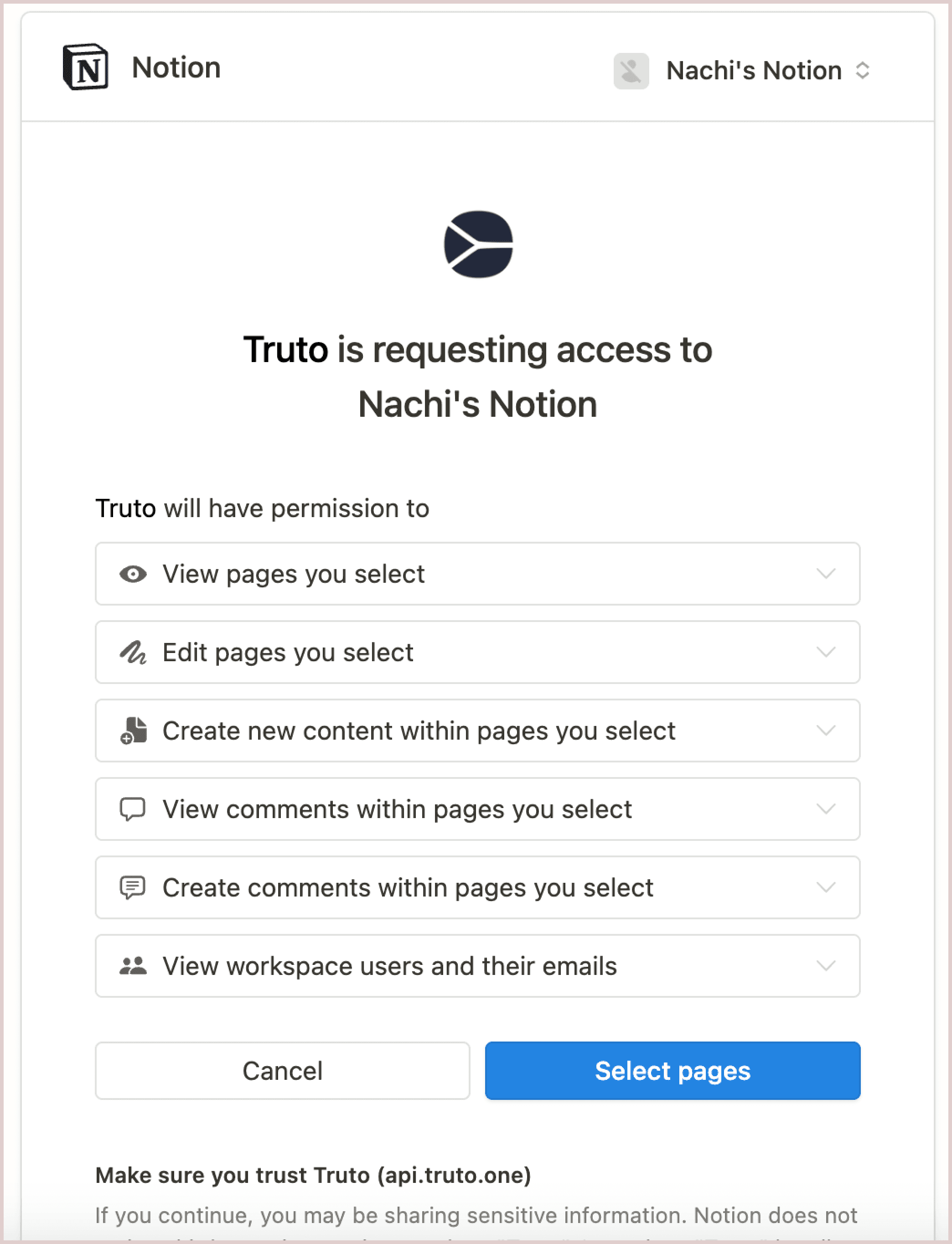
- Use the OAuth app provided by Truto or your OAuth app to authorize
- Chooses specific files to sync
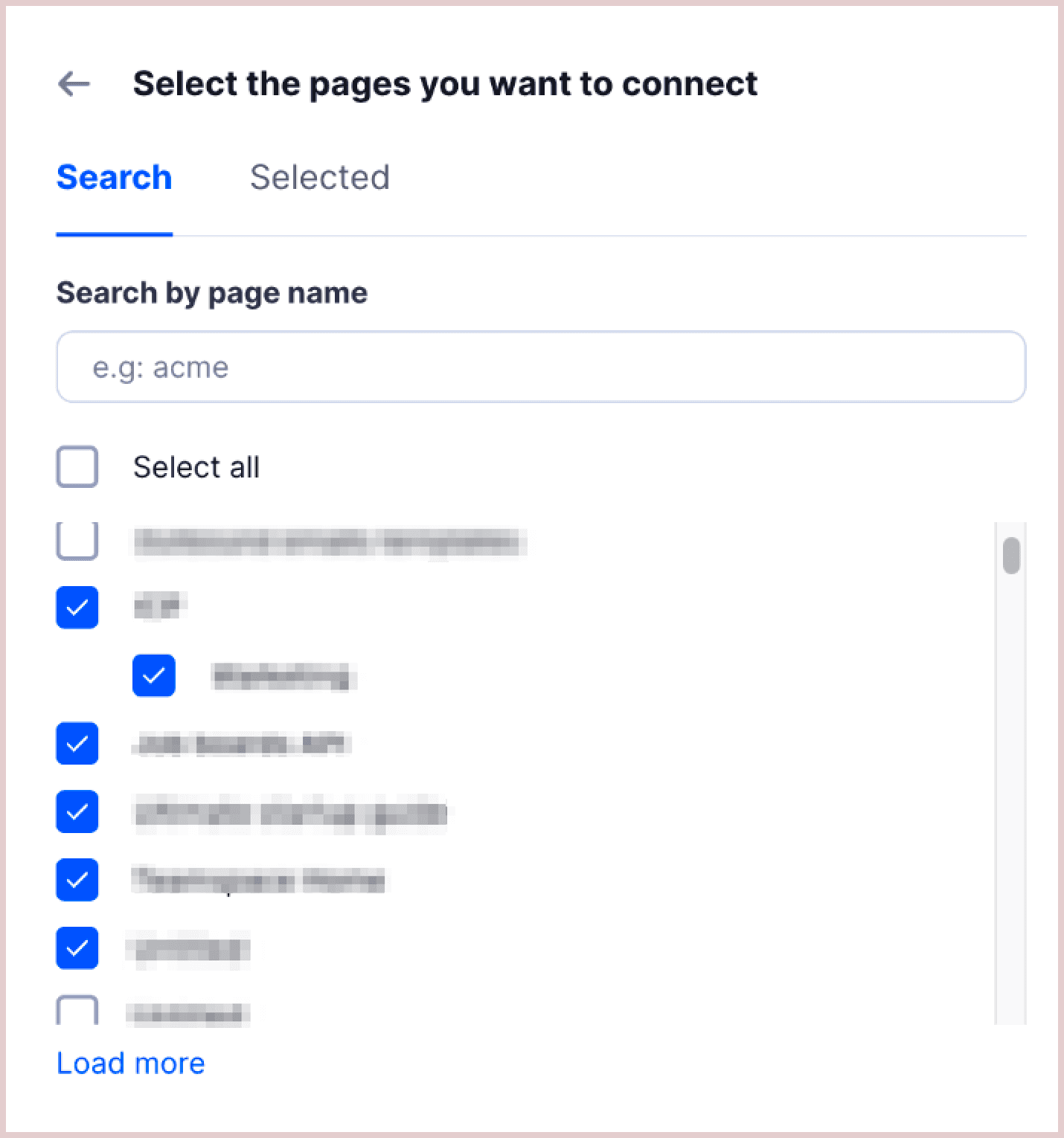
The Notion form you see below is completely customizable.
! Truto's RapidForm UI showing a searchable checklist to select specific Notion pages for connection.
This RapidForm UI represents a significant improvement over the standard Notion page selector. Truto's RapidForm enables customization of the form field, including parent-child selectors, and provides a separate tab for viewing all selected pages. During our tests, it easily accommodated large Notion accounts with over 40,000 pages.
-
RapidForm can be initialized at any point using our Link SDK. This will enable your users to select additional files or pages at a later point in time.
-
All pages are stored as variables for easy access in RapidBridge and other places. You can learn more about variables here.
Building a Post-Connection Configuration UI with RapidForm
The OAuth handshake is just the beginning of any SaaS integration. What comes next is the harder problem: letting your users scope exactly which data they want to sync. Most teams end up building custom post-connection configuration UIs for every connector - a workspace picker for Asana, a channel selector for Slack, a page browser for Notion. Each one requires its own API calls, pagination logic, dependent dropdowns, and state management.
RapidForm is Truto's declarative answer to this. Instead of writing bespoke connector UI post-connection flows for each integration, you define a JSON configuration that describes what to collect from users. Truto handles the rendering, API calls, pagination, and persistence. One pattern works across every integration.
When to use RapidForm
- Scoping sync to specific resources: Let users pick which Notion pages, Asana projects, Zendesk tags, or Slack channels to sync - instead of pulling everything.
- Collecting integration-specific settings: Gather API keys, subdomain info, or configuration values that the OAuth flow doesn't capture.
- Enforcing data minimization: Only pull data your users explicitly approve. This matters for compliance and customer trust.
- Dynamic, dependent selections: Show projects within a workspace, or child pages within a parent - where one selection drives the next.
Declarative Form Schema: Basics
A RapidForm is a single JSON object describing what to render and how to fetch data. Three concepts do most of the work:
- Fields - the objects users interact with. Every field has a
name,type,label, and optionalhelp_text,placeholder,required, anddepends_on. - Data sources - where option lists come from. A
data_sourcepoints at either the Unified API ("type": "unified") or the Proxy API ("type": "proxy"), plus aresourceandmethod. Query parameters can reference other field values via{{field_name}}placeholders. - Options mapping - how API responses become dropdown entries. The
optionsobject maps response attributes tovalue,label, and optionalsubTextorparent.
Here's the shape at a glance:
{
  "type": "form",
  "config": {
    "fields": [
      {
        "name": "<internal_key>",
        "type": "single_select | multi_select | text | password | checkbox | hidden",
        "label": "<UI label>",
        "help_text": "<UI helper copy>",
        "required": true,
        "depends_on": ["<other_field_name>"],
        "data_source": {
          "type": "unified | proxy",
          "resource": "<resource_path>",
          "method": "list | get",
          "query": { "<param>": "{{other_field}}" }
        },
        "options": {
          "value": "<response_field>",
          "label": "<response_field>",
          "subText": "<response_field>",
          "parent": "<response_field>"
        }
      }
    ],
    "validation_expression": "<optional JSONata>",
    "transform_expression": "<optional JSONata>"
  }
}
Everything above is data. There's no per-integration frontend code, no custom React components, no bespoke option-fetching logic. The same schema drives every SaaS integration post-connection setup UI Truto renders.
Example: Workspace Selector (schema + UI)
The simplest useful pattern: after OAuth, ask the user which workspace, tenant, or account to sync. Here's the full schema for an Asana-style workspace picker:
{
  "type": "form",
  "config": {
    "fields": [
      {
        "name": "workspace_id",
        "type": "single_select",
        "label": "Workspace",
        "help_text": "Choose the workspace you want to sync",
        "placeholder": "Select a workspace",
        "required": true,
        "data_source": {
          "type": "unified",
          "resource": "ticketing/workspaces",
          "method": "list"
        },
        "options": {
          "value": "id",
          "label": "name",
          "subText": "id"
        }
      }
    ]
  }
}
Rendered, the user sees a dropdown labeled "Workspace" populated with every workspace their token can access, with the workspace ID as sub-text so admins with duplicate names can disambiguate. Selecting one saves workspace_id onto the integrated account. The same shape drives Jira sites, HubSpot portals, Salesforce orgs, Slack workspaces, or Notion parents - only the resource changes.
Example: Field Mapper (schema + UI)
Field mapping is where most teams end up writing custom UI. The pattern: for each field in your unified model, let the user pick which source-system field it maps to. Model each mapping as its own single_select sourcing options from the account's live schema via the Proxy API.
{
  "type": "form",
  "config": {
    "fields": [
      {
        "name": "map_email",
        "type": "single_select",
        "label": "Email field",
        "help_text": "Which Salesforce field holds the contact's email?",
        "required": true,
        "data_source": {
          "type": "proxy",
          "resource": "sobjects/Contact/describe",
          "method": "get"
        },
        "options": {
          "value": "name",
          "label": "label",
          "subText": "type"
        }
      },
      {
        "name": "map_owner",
        "type": "single_select",
        "label": "Owner field",
        "required": true,
        "data_source": {
          "type": "proxy",
          "resource": "sobjects/Contact/describe",
          "method": "get"
        },
        "options": {
          "value": "name",
          "label": "label",
          "subText": "type"
        }
      }
    ],
    "transform_expression": "$merge([$, { \"field_mapping\": { \"email\": map_email, \"owner\": map_owner } }])"
  }
}
The UI renders one dropdown per unified field. Each dropdown lists the actual object fields from the customer's tenant, with the field type shown as subText so users can tell a Text field apart from a Picklist. The transform expression folds the individual selections into a single field_mapping object that downstream sync jobs and Proxy API calls can reference via {{field_mapping.email}}.
Advanced Example: Filters + Cron Schedule
Production integrations combine multiple concerns in one setup step: what to sync, how to filter, and how often. Here's a Zendesk configuration that layers a tag filter, a status filter, and a sync frequency on top of a subdomain.
{
  "type": "form",
  "config": {
    "fields": [
      {
        "name": "subdomain",
        "type": "text",
        "label": "Subdomain",
        "help_text": "e.g., 'acme' for acme.zendesk.com",
        "required": true
      },
      {
        "name": "tags",
        "type": "multi_select",
        "label": "Tags",
        "help_text": "Only sync tickets tagged with any of these (leave empty for all)",
        "depends_on": ["subdomain"],
        "data_source": {
          "type": "unified",
          "resource": "ticketing/tags",
          "method": "list"
        },
        "options": { "value": "name", "label": "name" }
      },
      {
        "name": "statuses",
        "type": "multi_select",
        "label": "Ticket statuses",
        "help_text": "Sync tickets in these statuses only",
        "required": true,
        "data_source": {
          "type": "unified",
          "resource": "ticketing/statuses",
          "method": "list"
        },
        "options": { "value": "value", "label": "label" }
      },
      {
        "name": "sync_frequency",
        "type": "single_select",
        "label": "Sync frequency",
        "help_text": "How often should we pull new tickets?",
        "required": true,
        "data_source": {
          "type": "static",
          "options": [
            { "value": "*/15 * * * *", "label": "Every 15 minutes" },
            { "value": "0 * * * *",    "label": "Hourly" },
            { "value": "0 */6 * * *",  "label": "Every 6 hours" },
            { "value": "0 0 * * *",    "label": "Daily at midnight UTC" }
          ]
        },
        "options": { "value": "value", "label": "label" }
      }
    ],
    "validation_expression": "$match(subdomain, /^[a-z0-9-]+$/) and $count(statuses) > 0 ? undefined : [{ \"field\": \"subdomain\", \"message\": \"Fix subdomain and pick at least one status\" }]"
  }
}
The output persisted to the account context looks like:
{
  "subdomain": "acme",
  "tags": ["vip", "escalated"],
  "statuses": ["open", "pending"],
  "sync_frequency": "0 */6 * * *"
}
A RapidBridge sync job then reads {{sync_frequency}} as its cron schedule and uses {{tags}} and {{statuses}} as filter parameters. Three otherwise disconnected concerns - filter, scope, and cadence - get captured in one declarative form with no custom UI.
How to Plug Declarative Forms into Your Connection Record
The form definition lives on the installed integration's post_connect_user_form action. Attach it by PATCHing the environment integration with your form config:
curl --request PATCH 'https://api.truto.one/environment-integration/<id>' \
  --header 'Content-Type: application/json' \
  --header 'Authorization: Bearer <your_api_key>' \
  --data '{
    "override": {
      "actions": {
        "post_connect_user_form": {
          "steps": [
            {
              "type": "form",
              "config": { "fields": [ /* ... */ ] }
            }
          ]
        }
      }
    }
  }'
Once the form is attached, Truto's connection flow works like this:
- User completes OAuth (or enters API credentials) inside the Link SDK modal.
- Truto looks up
post_connect_user_form.stepson the installed integration. - If a form is defined, RapidForm renders it in the same modal - no extra integration code required on your side.
- On submit, values are validated with the JSONata
validation_expression, transformed with the JSONatatransform_expression, and persisted as variables on the integrated account. - From that point on, any sync job, Proxy API call, unified endpoint, or MCP tool invocation can reference those variables via
{{field_name}}placeholder syntax.
The integrated account is your connection record - one entry per customer connection, holding the credentials plus the RapidForm output. Because everything is stored as data, you can evolve the form later (add a field, tighten validation) and existing connections keep working. Users who need to change their selections re-open RapidForm via the Link SDK, and their connection record updates in place - no reconnect required.
Cascading Selects and Pagination
Real-world integrations rarely have flat option lists. Users have workspaces containing projects containing tasks, or parent pages containing child pages. RapidForm handles this with two mechanisms: field dependencies and built-in pagination.
Cascading dependencies let one field's options depend on another field's value. Here's a config where a workspace selector drives a project selector:
{
  "type": "form",
  "config": {
    "fields": [
      {
        "name": "workspace_id",
        "type": "single_select",
        "label": "Workspace",
        "help_text": "Select the workspace you want to sync",
        "placeholder": "Select a workspace",
        "required": true,
        "data_source": {
          "type": "unified",
          "resource": "ticketing/workspaces",
          "method": "list"
        },
        "options": {
          "value": "id",
          "label": "name",
          "subText": "id"
        }
      },
      {
        "name": "collections",
        "type": "multi_select",
        "label": "Projects",
        "depends_on": ["workspace_id"],
        "help_text": "The projects to sync",
        "required": true,
        "disabled_text": "Please select a workspace",
        "data_source": {
          "type": "unified",
          "resource": "ticketing/collections",
          "method": "list",
          "query": {
            "workspace_id": "{{workspace_id}}"
          }
        },
        "options": {
          "value": "id",
          "label": "name",
          "subText": "id"
        }
      }
    ]
  }
}
How it works:
depends_onaccepts an array of field names. The dependent field stays disabled (showingdisabled_text) until its parent has a value.- The
queryobject indata_sourceuses{{workspace_id}}placeholder syntax to inject the parent field's selected value into the API call. - When a parent field changes, dependent fields reset automatically so stale selections don't persist.
- The order of fields in the
config.fieldsarray determines the order they appear in the UI.
Pagination is built in. For accounts with thousands of items - like our Notion integration handling 40,000+ pages - RapidForm paginates through results automatically. Users see a "Load more" button to fetch additional pages of data. For smaller datasets, you can enable auto-pagination to load everything as the user scrolls, but be careful with large datasets.
For multi-select fields where users might select 1,000+ items, set the high_cardinality flag to optimize how selections are stored and transmitted.
JSONata Validation Examples
Basic required/optional validation is built into each field. For more complex rules - like "select at least 5 projects" or cross-field validation - RapidForm supports custom validation using JSONata expressions.
Here's a validation that enforces a minimum selection count:
($exists(pages) and $count(pages) >= 1)
  ? undefined
  : [{ "field": "pages", "message": "Select at least one page to sync" }]
The expression receives the current form state as input and returns either undefined (validation passes) or an array of error objects targeting specific fields. This runs before the form can be submitted, giving users immediate feedback.
You can also use JSONata transform expressions to compute derived fields before saving. For example, adding a count of selected items and a timestamp:
$merge([
  $,
  {
    "total_selected": $count(pages),
    "configured_at": $now()
  }
])
The $merge function combines the original form data ($) with computed fields. The result is what gets persisted to the account context.
How RapidForm Persists Configuration to Account Context
Once a user submits the form, RapidForm saves all selected values as variables (also called context) on the integrated account. These variables are stored as a JSON object and are available everywhere in Truto - sync jobs, Proxy API calls, and custom automations.
For example, after a user selects three Notion pages in RapidForm, the integrated account's context includes:
{
  "pages": [
    { "value": "abc-123", "label": "Product Roadmap" },
    { "value": "def-456", "label": "Engineering Wiki" },
    { "value": "ghi-789", "label": "Marketing Plans" }
  ]
}
In a RapidBridge sync job, you reference these variables using placeholder syntax:
{
  "resources": [
    {
      "resource": "documents/pages",
      "method": "get",
      "loop_on": "{{pages}}",
      "id": "{{pages}}"
    }
  ]
}
The loop_on directive iterates over the selected pages, fetching each one individually. This is exactly how the 40,000-page Notion integration works - users pick what they need through RapidForm, and the sync job only pulls those pages.
The flow looks like this:
sequenceDiagram
    participant User
    participant RapidForm
    participant Truto
    participant Notion as "Notion API"

    User->>RapidForm: Opens post-connection UI
    RapidForm->>Truto: Fetch pages (Unified API)
    Truto->>Notion: GET /pages
    Notion-->>Truto: Page list (paginated)
    Truto-->>RapidForm: Render page tree
    User->>RapidForm: Selects pages + submits
    RapidForm->>Truto: Save selections to<br>account context
    Truto-->>User: Sync job uses<br>selected pages only
Embedding RapidForm in Your App
RapidForm renders automatically as part of Truto's account connection flow. But you can also trigger it independently at any point using the Link SDK - useful for letting users update their sync preferences after initial setup.
This means your post-connection configuration UI isn't a one-time gate. Users can come back and add or remove pages, change workspace selections, or update any configuration - without reconnecting their account. For your engineering team, this eliminates the need to build and maintain custom settings UIs for each integration.
RapidForm Cookbook: Common Post-Connection Patterns
Every integration has its own quirks, but the shape of post-connection configuration converges on a handful of patterns. Here are the ones you'll build over and over.
Pattern 1: Simple Workspace or Account Selector
The most common pattern - the user has multiple workspaces, tenants, or organizations and needs to pick one to scope the integration.
{
  "name": "workspace_id",
  "type": "single_select",
  "label": "Workspace",
  "help_text": "Choose the workspace to sync",
  "required": true,
  "data_source": {
    "type": "unified",
    "resource": "ticketing/workspaces",
    "method": "list"
  },
  "options": {
    "value": "id",
    "label": "name",
    "subText": "id"
  }
}
Same shape works for Asana workspaces, Jira sites, HubSpot portals, Salesforce orgs, or Slack workspaces - only the resource changes.
Pattern 2: Tag or Label Filter
Let users narrow the sync to records with specific tags or labels. Common in ticketing (Zendesk, Freshdesk) and CRM (HubSpot lists, Pipedrive filters).
{
  "name": "tags",
  "type": "multi_select",
  "label": "Tags",
  "help_text": "Only sync tickets with these tags",
  "required": false,
  "data_source": {
    "type": "unified",
    "resource": "ticketing/tags",
    "method": "list"
  },
  "options": {
    "value": "name",
    "label": "name"
  }
}
Leaving required: false means an empty selection syncs everything - useful when tag-based filtering is optional.
Pattern 3: Dependent Project or Board List
When resources are nested (workspace → project, org → repo, portal → pipeline), use depends_on with a query placeholder. This is the same cascading pattern from earlier, compressed for reference:
{
  "name": "projects",
  "type": "multi_select",
  "label": "Projects",
  "depends_on": ["workspace_id"],
  "disabled_text": "Select a workspace first",
  "data_source": {
    "type": "unified",
    "resource": "ticketing/collections",
    "method": "list",
    "query": { "workspace_id": "{{workspace_id}}" }
  },
  "options": { "value": "id", "label": "name" }
}
Pattern 4: Subdomain + API Key Credentials
For integrations that need a tenant subdomain before you can even hit the API (Zendesk, Freshdesk, self-hosted Jira), collect it with text and password fields:
{
  "config": {
    "fields": [
      {
        "name": "subdomain",
        "type": "text",
        "label": "Subdomain",
        "help_text": "Your company subdomain (e.g., acme for acme.zendesk.com)",
        "required": true
      },
      {
        "name": "api_key",
        "type": "password",
        "label": "API Token",
        "required": true
      }
    ]
  }
}
Pair it with a JSONata validation that catches malformed subdomains before submission:
($match(subdomain, /^[a-z0-9-]+$/))
  ? undefined
  : [{ "field": "subdomain", "message": "Subdomain must be lowercase alphanumeric" }]
Pattern 5: Visual Field Mapping
When customers have custom fields that need to be mapped to your unified schema (e.g., a Salesforce Deal_Owner__c mapped to your owner field), model each mapping as its own single_select, sourcing options from the account's live schema.
{
  "config": {
    "fields": [
      {
        "name": "map_email",
        "type": "single_select",
        "label": "Email field",
        "help_text": "Which field holds the contact's email?",
        "required": true,
        "data_source": {
          "type": "proxy",
          "resource": "sobjects/Contact/describe",
          "method": "get"
        },
        "options": {
          "value": "name",
          "label": "label",
          "subText": "type"
        }
      },
      {
        "name": "map_owner",
        "type": "single_select",
        "label": "Owner field",
        "required": true,
        "data_source": {
          "type": "proxy",
          "resource": "sobjects/Contact/describe",
          "method": "get"
        },
        "options": {
          "value": "name",
          "label": "label"
        }
      }
    ]
  }
}
Use a transform expression to fold the individual mapping fields into a single field_mapping object before persistence:
$merge([
  $,
  {
    "field_mapping": {
      "email": map_email,
      "owner": map_owner
    }
  }
])
The field_mapping object is now available in the account context and can be referenced from RapidBridge sync jobs or Proxy API calls to translate between the customer's schema and your unified model - no per-tenant code required.
Instrumentation: What to Track and Why
A post-connection configuration UI that "works" for engineering can still leak users if you're not measuring where they drop off. Here's a minimum instrumentation contract for any integration setup flow, whether you're using RapidForm or building it yourself.
Recommended Events
| Event | When to fire | Why it matters |
|---|---|---|
integration_setup_started |
User clicks "Connect [App]" in your UI | Denominator for activation rate |
oauth_authorized |
OAuth callback succeeds | Isolates auth failures from config failures |
rapidform_opened |
Post-connection form renders | Confirms the form loaded (options fetched, no errors) |
field_option_loaded |
Options fetched for a data-driven field | Detects upstream API errors during option loading |
workspace_selected |
A single-select field value changes | Signals progress through the funnel |
pages_selected |
A multi-select confirmation | Captures scope decisions (count, cardinality) |
validation_failed |
JSONata validation returns errors | Surfaces confusing copy or overly strict rules |
mapping_saved |
Field-mapping step submitted | Tracks completion of the hardest step |
integration_setup_completed |
Form submits successfully | Numerator for activation rate |
integration_setup_abandoned |
Modal closed before completion | Attributes drop-off to a specific step |
Sample Payload
Keep payloads flat and consistent across events. Attach the same core identifiers so you can join events into per-user funnels:
{
  "event": "workspace_selected",
  "timestamp": "2025-04-12T14:22:07Z",
  "user_id": "usr_9f2a...",
  "customer_id": "cust_4c8b...",
  "integrated_account_id": "ia_7d3e...",
  "integration_name": "asana",
  "step": "workspace",
  "duration_ms_from_start": 8420,
  "properties": {
    "workspace_id": "1201234567890",
    "workspace_count_available": 4
  }
}
For integration_setup_completed, add total elapsed time and final selection counts so you can correlate scope with downstream engagement:
{
  "event": "integration_setup_completed",
  "integrated_account_id": "ia_7d3e...",
  "integration_name": "notion",
  "duration_ms_total": 47210,
  "properties": {
    "pages_selected": 23,
    "parent_pages_selected": 4,
    "used_search": true,
    "used_pagination": false
  }
}
Recommended Metrics
Build these on top of the event stream:
- Activation rate =
integration_setup_completed/integration_setup_started, segmented by integration - OAuth-to-config drop-off =
(oauth_authorized - integration_setup_completed) / oauth_authorized - Time to activation at p50, p95, and p99 - measured from
integration_setup_startedtointegration_setup_completed - Step-level drop-off = users who fired step N minus users who fired step N+1, divided by step N
- Validation error rate =
validation_failedevents /rapidform_openedevents, grouped by field name - Option-load error rate - failures in
field_option_loadedper integration; a spike usually means an upstream API is throttling or misconfigured
Sample Dashboards and Activation SLAs
Once events land in your analytics warehouse (Amplitude, Mixpanel, PostHog, or a warehouse-fed BI tool), a few dashboards give you enough coverage to catch regressions early.
Dashboard 1: Setup Funnel
A step-by-step funnel from integration_setup_started through integration_setup_completed, filterable by integration. If Notion has a 92% completion rate but Salesforce has 61%, the field-mapping step in Salesforce is your suspect.
Dashboard 2: Time-to-Activation Distribution
A histogram of duration_ms_total from integration_setup_completed, broken out by integration. Look for bimodal distributions - they usually mean a subset of users are getting stuck on one specific step (often option loading for high-cardinality accounts).
Dashboard 3: Field-Level Health
A table of every RapidForm field across all integrations with three columns: option-load success rate, average time to load options, and validation failure rate. Any row with option-load success under 99% or validation failure over 10% deserves attention.
Suggested Thresholds
These are starting points - tune them to your baseline once you have two or three weeks of data.
| Metric | Target | Investigate at |
|---|---|---|
| Activation rate (per integration) | > 75% | < 60% |
| OAuth-to-config drop-off | < 15% | > 25% |
| Time-to-activation p50 | < 2 min | > 4 min |
| Time-to-activation p95 | < 8 min | > 15 min |
| Option-load success rate | > 99% | < 97% |
| Validation error rate (per field) | < 5% | > 15% |
Post-Integration Configuration Best Practices
A handful of rules consistently move these numbers in the right direction:
- Default to permissive scopes, then let users narrow. Empty multi-selects should mean "sync everything" so users who don't touch the form still get value. Force selection only when the API literally requires it.
- Preload options in the background. Fire
data_sourcecalls as soon as OAuth completes, not when the user clicks the dropdown. RapidForm does this by default. - Show counts, not just names. "Engineering (1,247 tasks)" is more useful than "Engineering." Use the
subTextoption to expose scale. - Let users come back. Trigger RapidForm again via the Link SDK when users want to change their configuration. Never require a full reconnect for a scope change.
- Validate on submit, not on every keystroke. JSONata validation should run once at submission with actionable messages. Character-by-character validation usually creates more frustration than it prevents.
- Instrument every field. If you can't answer "which field kills our funnel," you can't fix it.
Try out the Notion integration
Want to try out the integration? Get in touch with us at support@truto.one or book a demo.
Truto SuperQuery
This also marks the birth of Truto SuperQuery - our solution to help you filter data even when the underlying API lacks the necessary filters.
With Truto SuperQuery and Truto Real-time, businesses can fulfill all their desired use cases without any compromises. Discover more about the trade-offs between real-time and cached unified APIs here to determine which version of Truto aligns best with your specific needs.
FAQ
- What is a post-connection configuration UI in SaaS integrations?
- After a user completes OAuth and connects their account, they often need to scope what data to sync - picking specific workspaces, projects, pages, or channels. A post-connection configuration UI is the form that collects these preferences. Truto's RapidForm generates this UI from a declarative JSON config, eliminating the need to build custom forms per integration.
- How does RapidForm handle large accounts with thousands of items?
- RapidForm includes built-in pagination. For large accounts (like Notion workspaces with 40,000+ pages), users see a 'Load more' button to fetch additional results. For multi-select fields expecting 1,000+ selections, the high_cardinality flag optimizes storage and transmission.
- Can RapidForm fields depend on each other (cascading selects)?
- Yes. Use the depends_on array to specify parent fields. The child field stays disabled until the parent has a value, and the query object uses placeholder syntax like {{workspace_id}} to pass the parent's selection into the API call. Child fields reset automatically when the parent changes.
- How are RapidForm selections used in sync jobs?
- RapidForm saves all user selections as variables (context) on the integrated account. In a RapidBridge sync job, you reference these variables using placeholder syntax like {{pages}} in loop_on and id fields, so the sync job iterates over exactly the items the user selected.
- Can users update their RapidForm selections after initial setup?
- Yes. RapidForm can be opened at any time using Truto's Link SDK, independent of the initial connection flow. Users can add or remove selections without re-authenticating their account.